


The village is quite a large place that’s consistently expanded upon with new DLC areas in Disney Dreamlight Valley. This means there’s quite a lot of land to decorate, which can oftentimes make it feel like a daunting task. Luckily, you can now use preset codes to make the process easier.
Since the preset codes feature wasn’t always around, you may not be familiar with how it works. It’s quite a handy way to quickly fill up some empty space or get your hands on items that might be missing from your collection. If any part of this process has you stumped, here’s how to create, use, and find preset codes in Disney Dreamlight Valley.
Table of contents
How to create and share preset codes in Disney Dreamlight Valley
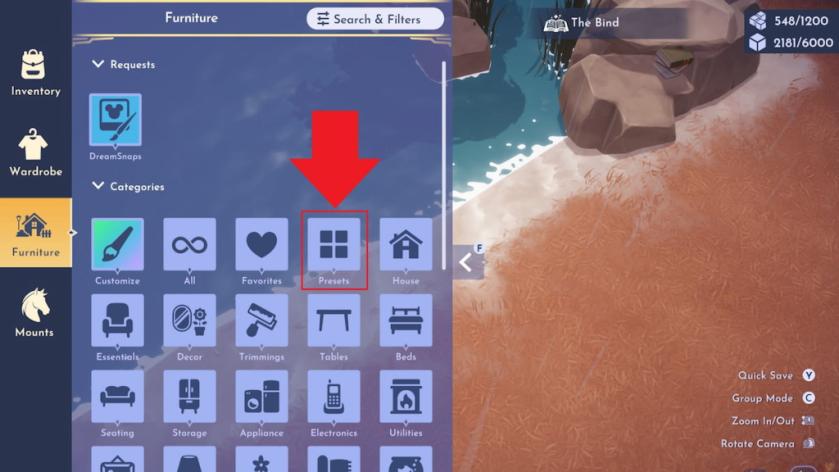
You can create and share a preset from the Presets page under the Furniture menu in DDV. It can be a bit of a tough process to navigate the first time around, so here’s a full breakdown of how to make it happen.
- Complete the Developed Decorating quest. The presets feature isn’t available to use until this mission is done, so chat with Merlin to get going on this quest and fully complete it so you can then freely use this feature.
- Open the Furniture page. The Presets feature is hidden under this menu.
- Click the Presets tab. You can find it near the right end of the first row between the Favorites and House sections.
- Select the “Add new” option. If you don’t have a preset already made, you’ll need to create one here. Select this option to start the process, then highlight the items you want to include. Select the “Save preset” option to finalize the process once you’re done.
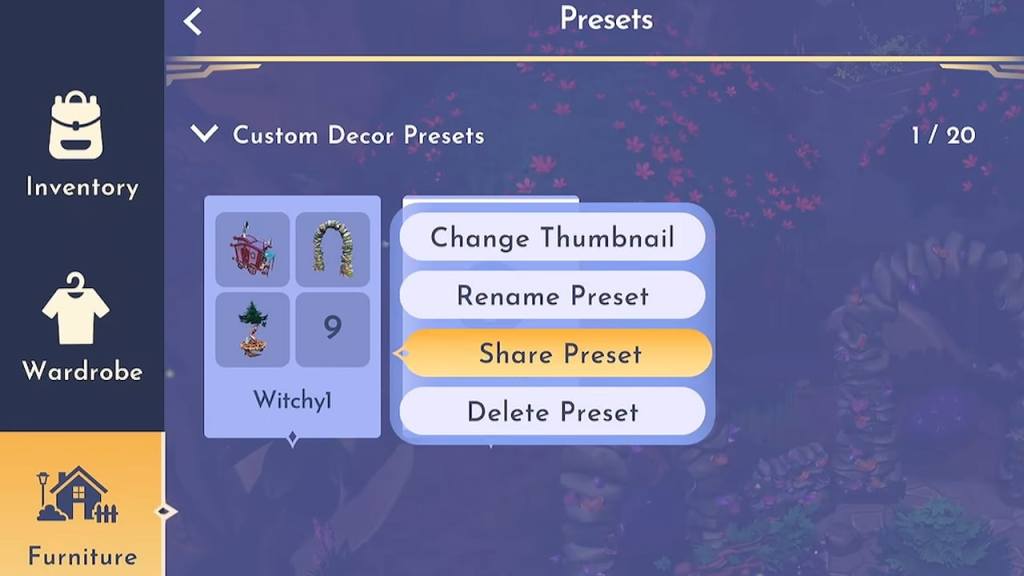
- Choose the “Share preset” option. Hover over any created preset and select the “Share preset” option to generate a code for it. You can then share this code with other players so they can use your creation.
Read what’s behind the latest news in gaming (with a bit of snark) by subscribing to the Destructoid Checkpoint newsletter!
How to use preset codes in Disney Dreamlight Valley
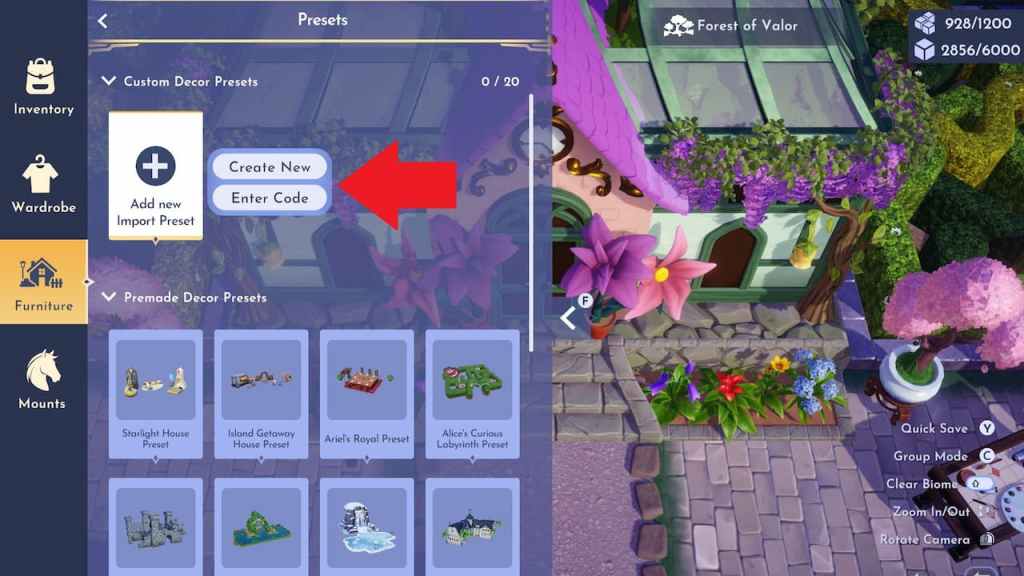
To use preset codes you find from other players, you need to select the “Enter code” option on the Presets page. Here’s how to find it.
- Open the Furniture Page.
- Select the Presets tab.
- Click the “Add new import preset” option.
- Choose the “Enter code” option.
- Paste or type out the code you found.
How to find preset codes in Disney Dreamlight Valley
You can find preset codes using various methods, but overall, you have to seek out other members of the DDV community to find them. Here are some ways to locate preset codes.
- By far the best place to find preset codes is on the Starlight Dreamers Portal. This community space has a dedicated presets page where players can share all key details of their presets, and you can easily browse through them.
- Another good place to check for presets is the DDV Reddit page. Players share all kinds of creations here, including presets they make.
- Sometimes, the official DDV social media accounts post presets you can use. Keep an eye on their various pages for when these codes show up.
How long do preset codes last in Disney Dreamlight Valley?
All preset codes are only valid for 14 days. This means that once shared, they are available to use for exactly two weeks before the code expires. If you want the preset to be available for longer than this, you’ll have to reshare it with a fresh code once the 14 days are up.
There are plenty of other tricky gameplay features you may need help navigating after this one. Some others to look into include changing the Dream Castle skin, asking villagers to collect items for you, and placing stalls in DLC worlds.


