


Rotations play a crucial role in your core World of Warcraft: Forever experience, but sometimes pressing the same five, six or even eight (I see you, Mages and Priests) keys in one fight can get exhausting quickly. Thankfully, macros in WoW: Forever do just that, as they’re technically “recipes” to chain commands.
When you use a macro, you’re essentially exchanging one action bar icon for one very intricate set of commands. It’s a very specific way of approaching a spell or an ability, and it can become a game-changer if you want to deal with enemies or situations in exactly the way you want. But you have to build macros yourself, so it can be a little daunting to do. So how exactly do you do it properly?
Table of contents
The basics of Macros in World of Warcraft
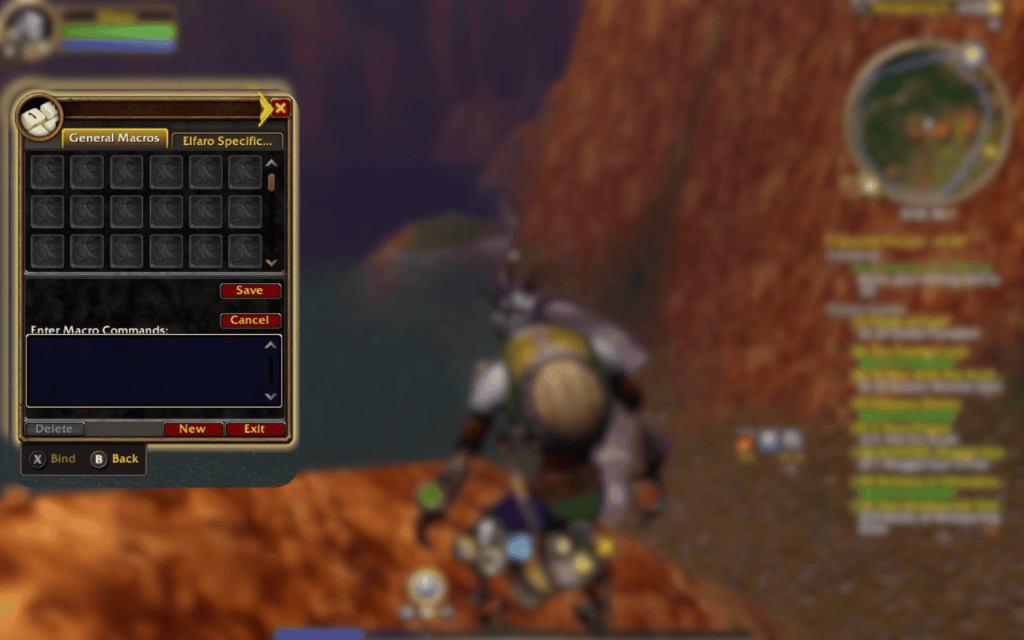
The concept of macros isn’t new in Forever, but long-time WoW fans will appreciate the fact that they’ll be able to implement this beloved feature in this reimagining of the OG WoW experience. Simply put, a macro is just a chat command that triggers from the click of a button on an action bar.
So if you don’t want to play your keyboard like the piano whenever something specific happens, you can use a macro to just store what’s going to happen. This can make your life easier overall and even lead to more advanced plays, as one action bar button might represent a whole string of events to adapt to or counter a given situation. With any luck, maybe your grinds can become a two-button affair instead of a whole rotation.
How to create a macro in WoW Forever
Before we diagnose what can go wrong with a macro, it helps to understand how to create one. Chances are, your macro isn’t working because of an error as early as this stage. Here’s a quick step-by-step recap:
Step 1: Get the exact name of the spell
With the macros window open, also open your spellbook. Locate the spell or ability that you want to use and hover the mouse over it. Use Shift+click, and the correct name of the spell will be typed in the macros window.
This is important, as getting the spelling wrong, including the space and punctuation, will break the macro immediately. For the Paladin class, this means Judgement is indeed spelled with an “e” after the “g” in the word.
Step 2: Create a blank macro
Now that you know which spell you’re aiming to use in the macro, you can go back to the open Macros tab. You can choose the General Macros to list all the Macros in your account or your character’s tab for macros dedicated to that character. After that:
- Press New, type the macro name you want to use
- Select the Question Mark (?) icon so it transforms into the spell the macro will be casting
- Type your macro commands in the big box, with one command per line
- Press Save, then drag the macro’s icon into an action bar
- Use it
Step 3: Read one line at a time
The second step seems easy, but you might feel a bit overwhelmed. Sure, a macro has a list of commands. But how exactly do you form those commands? Remember these factors:
- Use this format: /command [conditions], where “/command” does a task related to the “[conditions]” you set.
- Read from left to right: The game will then slowly read the command and the conditions to determine which parts are true. If they are true, they are run first.
- A part with no conditions is always true: Unless a command has some conditions that restrict it, the whole command is treated as true
Reading a macro
With the general steps out of the way, let’s get into the nitty-gritty of setting up macros for your WoW: Forever leveling routine. Try interpreting this line first before we get into the specifics you can modify:
| One-line | Split-line |
|---|---|
| #showtooltip /cast [mod:shift, @focus] Polymorph; Frostbolt | #showtooltip /cast [mod:shift, @focus] Polymorph /cast [nomod] Frostbolt |
If we divide this into parts, it does the following:
- #showtooltip: Means to show the icon and description of the active spell that is about to be cast when pressing Shift
- /cast: This is the active command
- [mod:shift, @focus]: This is the condition, which means to only trigger when holding Shift (the modifier) and targeting the focus
- , (comma): This joins the conditions (and)
- Polymorph: This is the first spell to cast if the conditions are not true
- ; (semicolon): This starts the next option (otherwise)
- [nomod]: This is just an indicator that there are no modifiers present
- Frostbolt: This is the fallback. There’s nothing bracketed in front of it so there are no conditions to read first
A command for every action
Macros aren’t just limited to your spells. In World of Warcraft, a large portion of the game can be pretty much inserted into a macro so you can fine-tune your control over them. There are huge lists in Wowpedia, but they’re generally divided into the following segments:
- Standard combat commands
- Targeting commands for more fine-tuned targeting of your spells and other actions
- Character commands that control your actions
- Pet commands for the Hunter’s Pet
- Blizzard interface commands that affect the UI at large, which can include system actions
- Communication commands that affect things such as emotes, guild controls, as well as party and raid rules
The symbols, Arthas, what do they mean?!
With the general “reading” out of the way, let’s look at the other common symbols used in macros:
| Symbol | What it means | Example use case | How we should read it |
|---|---|---|---|
| / | Starts a command | /cast Holy Light | Cast Holy Light |
| # | Instead of an action, display something instead | #showtooltip | Show this spell’s icon and tooltip |
| [ ] | Holds conditions; no conditions if empty | [combat], [] | If I’m in combat |
| ; | Otherwise | [help] Renew; Smite | Renew a friend, otherwise do Smite |
| ! | Do not turn it off | /cast !Shoot | Start shooting and keep shooting if I already am |
| Symbol | What it means | Example use case | How we should read it |
|---|---|---|---|
| [ ] | Holds conditions | [combat] | If I’m in combat |
| : | Give a condition its details | [mod:shift] | If you hold Shift |
| , | Add | [harm,nodead] | If the target is an enemy and not dead |
| @ | Who to aim at | [@mouseover] | Cast on whoever my mouse is over |
| no | Flip a condition, “if I’m not” | [nocombat] | If I’m not in combat |
- ! (Exclamation point): For the exclamation point specifically, this is best suited for actions that are turned on/off when pressed for a second time. This simply means not to reverse the action at all
- No: This flips the action, so the trigger is if the user is “not” doing the action specified. So “nomod” means “if there’s no mod”
Targets for your macros
You can choose a wide variety of targets for your macros, and there’s a proper way of writing them. Refer to the table below:
| You write | It points at |
|---|---|
| – | Defaults to whatever you have selected |
| @player | You |
| @focus | The unit you saved with “/focus” |
| @mouseover | Whoever your mouse is pointing at, including party frames |
| @pet | Your pet |
| @partyt1 to @party4 | Your party members, in numerical order of joining after you |
| %t | In “/say” or “/party” lines is the target’s name as text |
Mind the action bar numbers
There are some macro commands that affect a number specifically, and these are often predetermined values. These are mostly affected by Stances (Warriors), Forms (Druids), Stealth (Rogue), Shadowform (Priest) and Ghost Wolf (Shaman), which usually have default numbers assigned to them in a dedicated bar. In those instances, consider this table:
| Number | Warrior | Druid | Rogue | Priest | Shaman |
|---|---|---|---|---|---|
| 0 | No stance | Caster form (no form) | Not in Stealth | Normal | Normal |
| 1 | Battle Stance | Bear Form | In Stealth | Shadowform | Ghost Wolf |
| 2 | Defensive Stance | Cat Form | – | – | – |
| 3 | Berserker Stance | Travel/Aquatic Form | – | – | – |
Try it yourself!
The easiest way to learn is to start doing it yourself, so let’s try doing a couple of macros for a Holy Paladin:
| Objective | Type this | What it should do |
|---|---|---|
| Cast a spell | #showtooltip /cast Holy Light | Same as dragging Holy Light from the spellbook |
| Add a Shift mod | #showtooltip /cast [mod:shift] Holy Light(Rank1); Holy Light | Shift casts the cheap Rank 1, otherwise your best rank |
| Add mouseover | #showtooltip /cast [mod:shift, @mouseover, help] Holy Light(Rank1); [@mouseover, help] [] Holy Light | Heals with Holy Light – Rank 1 whoever your mouse is over if they’re friendly, otherwise behaves like a normal cast with your highest rank |
| Add a second button | #showtooltip Judgement /cast Judgement /startattack | Judgements your target and keeps auto-attack running |
Diagnosing a WoW Forever macro that doesn’t work
It’s understandable that macros can feel very overwhelming if it’s your first time playing or leveling across Azeroth, so chances are something might not work with some macros you want to do for your Class. But just because you might get a macro wrong doesn’t mean it’s already over for you. Consider the following:
- Use conditionals for a Stance change: Abilities can’t switch Stances for you, and the macro remembers which Stance the Ability needs but not exactly the switch. So go for a conditional macro that switches you into the Stance if you’re not in it yet, and only use the skill when you’re in that Stance
- Keyboard binds should be correct: If you want the mod Shift to work properly as part of your macros, you need to make sure it’s not keybound elsewhere
- If you want to use your highest rank, don’t write the rank number: Only write the rank of a spell if you’re using its older rank on purpose. Otherwise, just type it without a rank so your highest (present) rank is activated


