


Star Wars Zero Company has been a breath of fresh air for those who love turn-based tactics, but the performance on the opening day hasn’t been up to the mark. While my journey has been relatively free of issues, I have encountered the odd stutters and freezes. If you scout the Steam reviews, you’ll locate similar issues for others.
In this guide, I will go through the best set of settings to use to get the best possible performance.
Best Star Wars Zero Company graphics settings
Before I deep dive into the settings, here’s a brief look at my current setup.
- AMD Ryzen 7 5700X
- AMD Radeon 9060XT 16 GB
- 32 GB of DDR4 RAM
While the list of issues on my end has been few and far between, I have prioritized listing down settings that benefit devices closer to the minimum requirements.
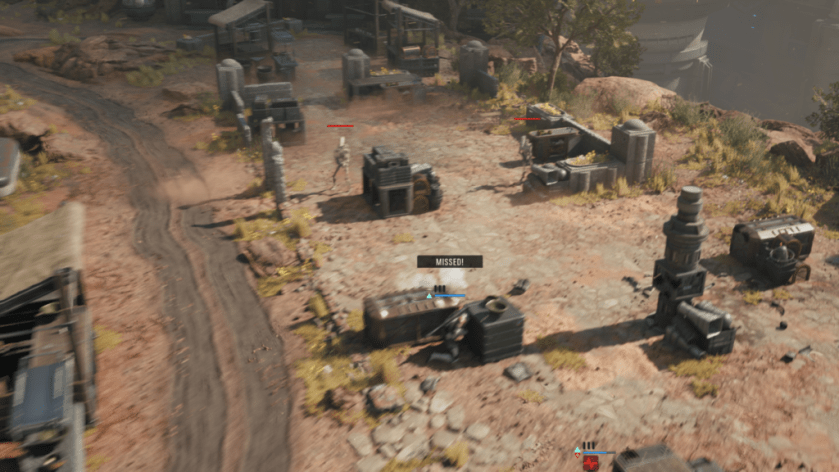
- Windowing Mode: Personal preference.
- Resolution: Go with the native resolution of your monitor screen.
- Frame Rare Limit: 60 FPS/75 FPS. 60 FPS is a nice sweet spot since the game isn’t an FPS. If you get smooth gameplay at 60 FPS, it’s the perfect solution.
- VSync: Off. Turn this on only if you’re getting frequent stutters.
- Antialiasing and Upscaling: AMD FSR for AMD devices, TSR for others.
- Upscaling Quality: Performance/Balanced
- Frame Generation: Off
- AMD Anti-Lag 2: On
- Overall Quality: Custom
- Shadow Quality: Low
- Global Illumination: Low
- Reflections: Low
- Post Processing: Medium
- Textures: Low
- Effect Quality: Medium
- Shading Quality: Low
- View Distance: Low
- Hidden Objects Detail: Simplified
- Environment Geometry Detail: Off (only if you have older GPUs)
The most significant difference to gameplay on my end happened when I put the cap on FPS. While you can turn it up, it’s best to keep it capped for now. I am expecting a few post-launch patches to smooth out lags and stutters.


