


The First Descendant has many settings you can tweak no matter the platform.
Most of these are similar across all platforms, but like all multi-platform games, PC gets the unique privilege of tweaking graphical settings to affect performance. If you have a high refresh rate monitor or low-end PC, you may want to change these settings to improve your performance. Here are the best PC settings for FPS in The First Descendant.
The best settings for performance on PC in The First Descendant
To reach the settings on PC, press Escape and click on Options on the left. The menus we’re focused on here are Graphics and Display. The following settings will provide the best performance without completely sacrificing visual quality:
Graphics settings
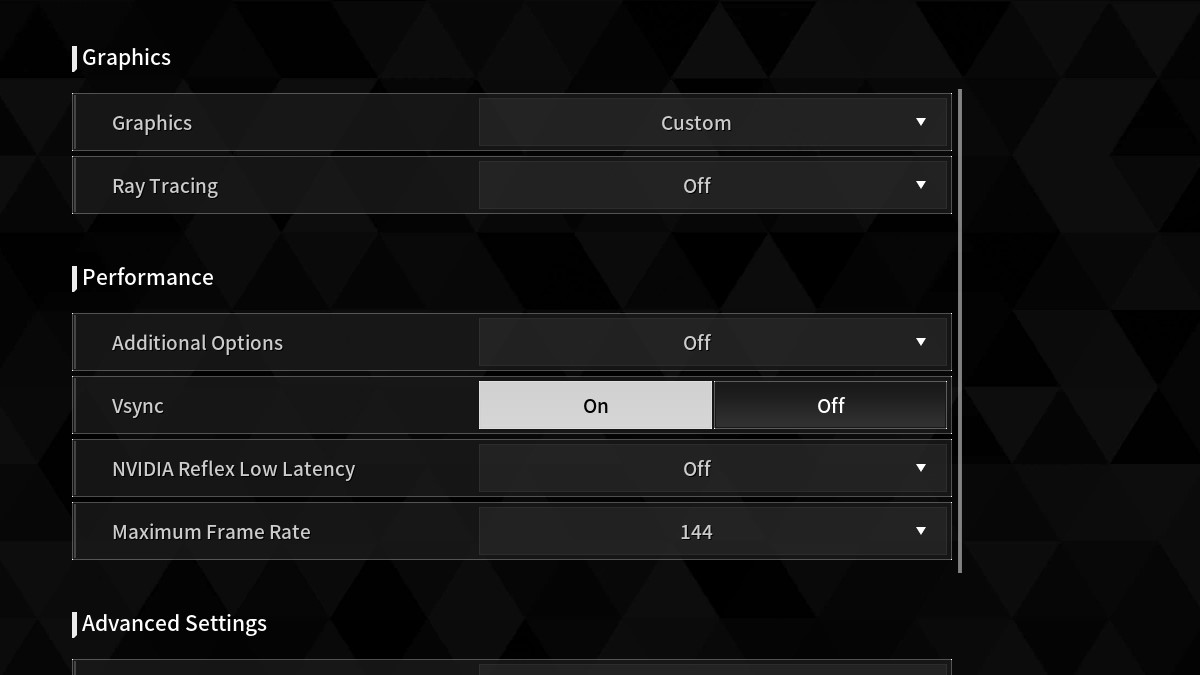
- Ray Tracing: Off
- Additional Options: Same as GPU manufacturer
- DLSS/XeSS/FSR: Performance or Balanced
- Vsync: Off
- NVIDIA Reflex Low Latency: On
- Frame Generation/Ray Reconstruction: Off
- Maximum Frame Rate: Same as monitor refresh rate (often 60)
- Visibility: Medium
- Anti-Aliasing: Low
- Post Processing: Low
- Shadows: Low
- Global Illumination: Medium
- Reflections: Low
- Textures: Low
- Effect: Low
- Vegetation: Medium
- Shader Quality: Low
- Object: Low
- Physics: Low
- Motion Blur: Off
Display settings
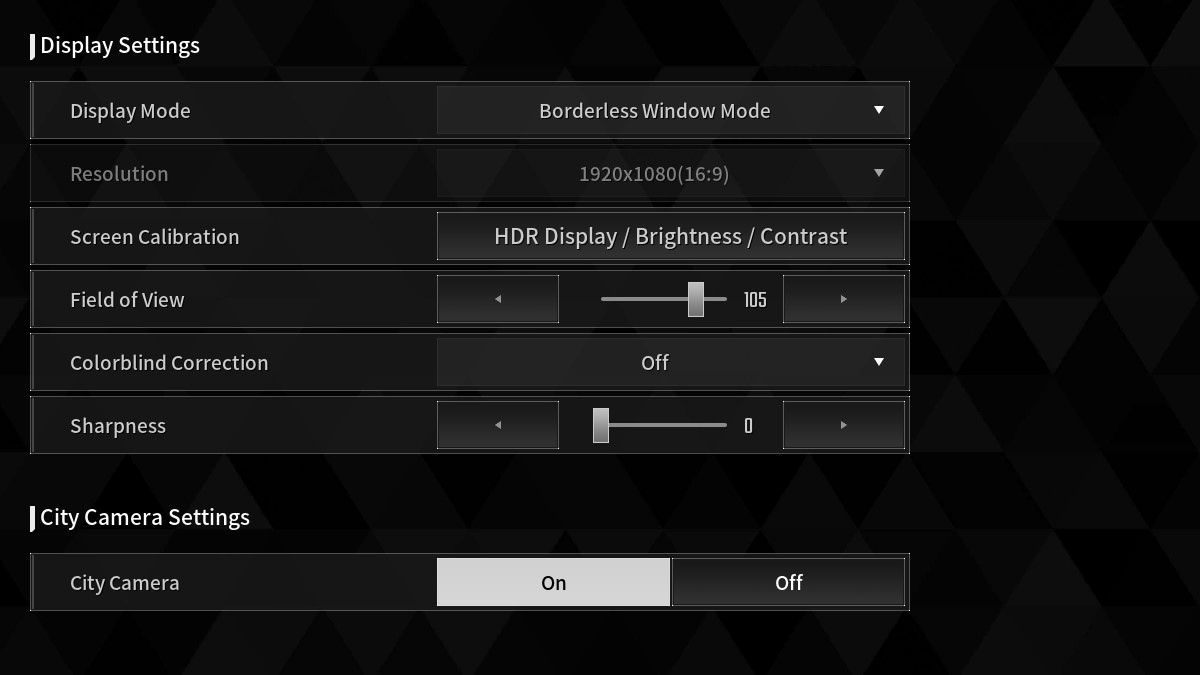
- Display Mode: Fullscreen Mode
- Resolution: Highest setting
- Field of View: Personal preference (lower values can reduce vision but increase framerate)
- Colorblind Correction: Personal preference
- Sharpness: 0
What other ways can you improve performance?
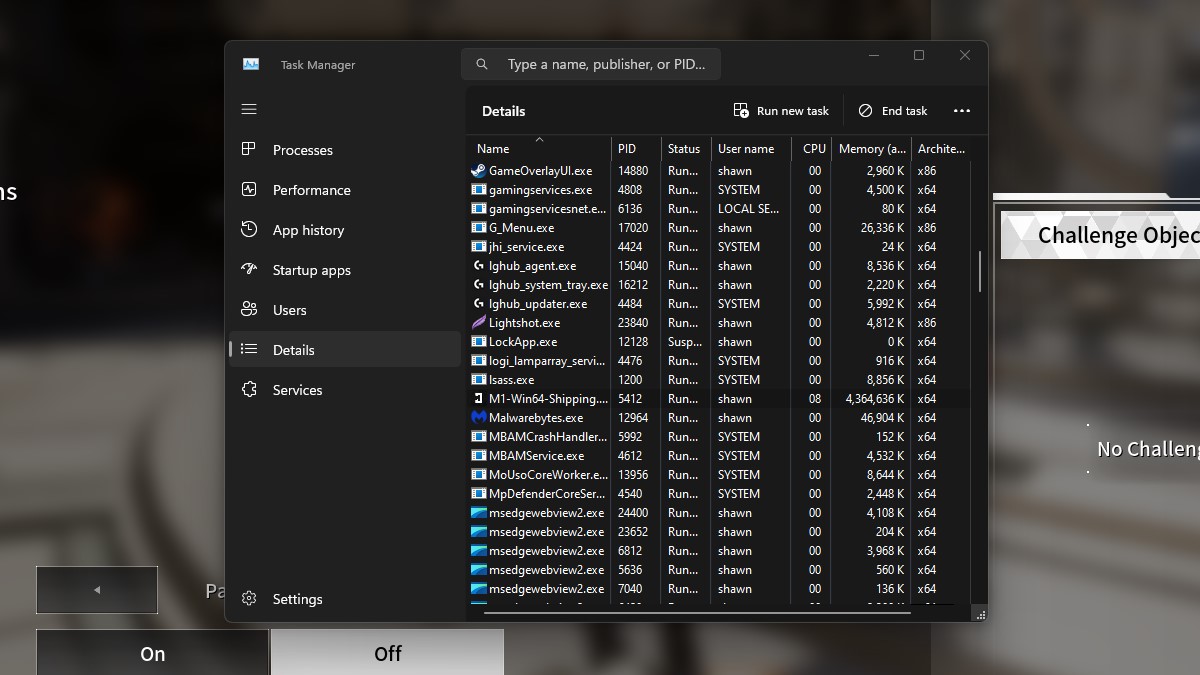
There are other ways to improve performance beyond your settings. For a quick improvement, navigate to your PC’s Task Manager and select the Details tab. From there, scroll down to the “M1-Win64-Shipping.exe” option and right-click it, then hover over “Set priority” and click High. This will put more of your CPU’s focus toward the game and could improve frames. Other options include enabling or disabling your PC’s Game Mode in Settings or closing background applications like your browser.


