

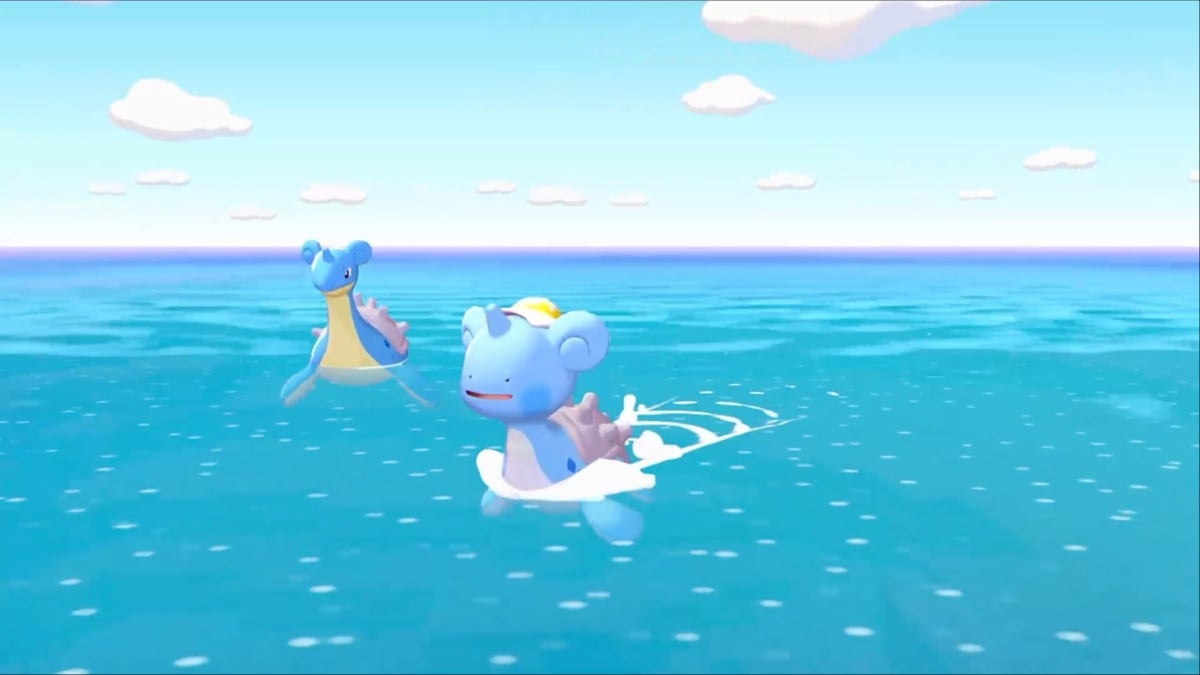
Pokémon Pokopia is now out worldwide for the Nintendo Switch 2 console, and you can use the GameShare feature to play with someone who owns the Switch 1 console.
Pokémon Pokopia is exclusive to the Switch 2, so there’s no native way to run it on the first-gen Switch. However, having the GameShare feature will allow you to bypass that limitation. While the feature is immensely beneficial, it’s pretty glitchy and limited as of writing on launch day.
How to use GameShare in Pokémon Pokopia
To use GameShare, you’ll need to own Pokémon Pokopia on the Nintendo Switch 2. While GameShare allows you to play the game on Nintendo Switch 1, you need a Switch 2 console to set it up.
- Load the game and head to the Palette Town region.
- You’ll find a massive bridge from Withered Wasteland. Take the bridge to reach Palette Town. If you have a Ditto Home, you can use it to fast travel to Palette Town. Either method works.
- Go to the first Pokémon Center at Palette Town.
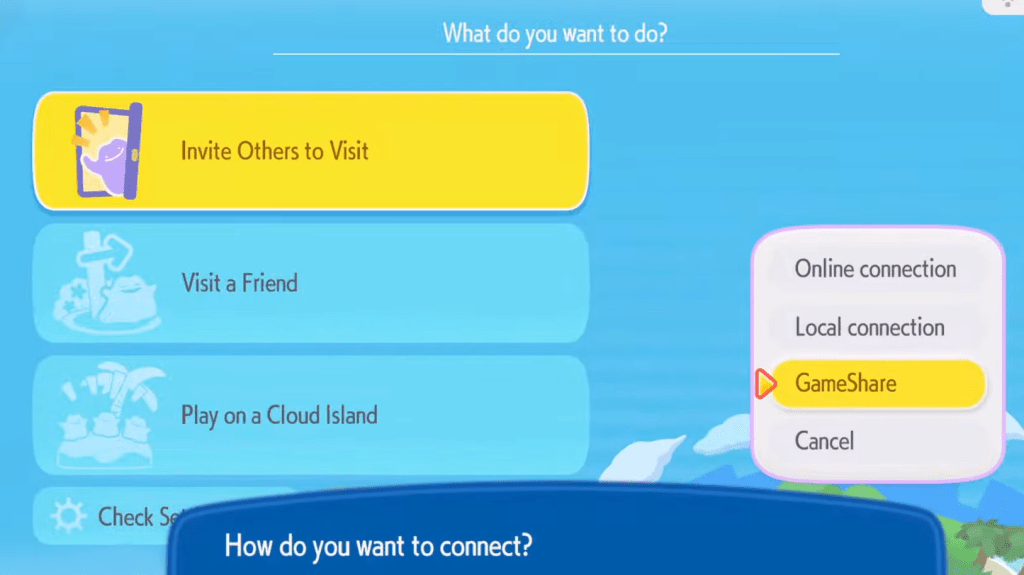
- Go to Link Play, then go to Invite Others to Visit.
- You’ll find the GameShare option that will allow you to share the game with nearby players.
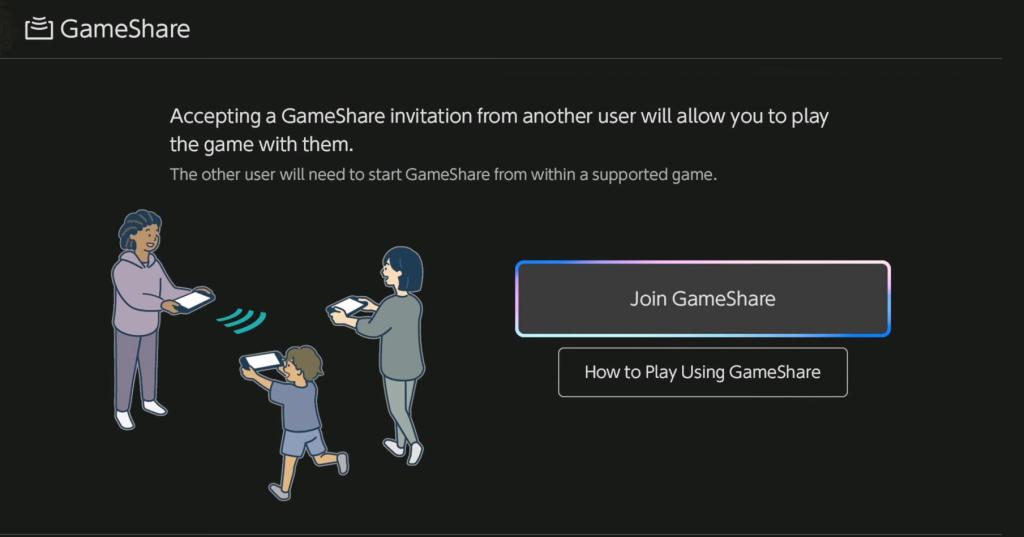
- The other person (who has to join) will click join on the guest console. Once they join, you can start the session.
How does GameShare work in Pokémon Pokopia
While the GameShare feature works fundamentally in the same fashion as the native multiplayer, it has limitations. For starters, the GameShare multiplayer lobbies can only support two players (unlike up to four on the native).
The feature also works as long as you and the host are in Palette Town. You can interact with the environment around you. You can cut trees, find items, water plants, and more. However, the guest can’t craft any new item.
Additionally, the guest can’t carry any items back with them. If they find something, it will be left in the Lost and Found box by the Pokémon Center.


