

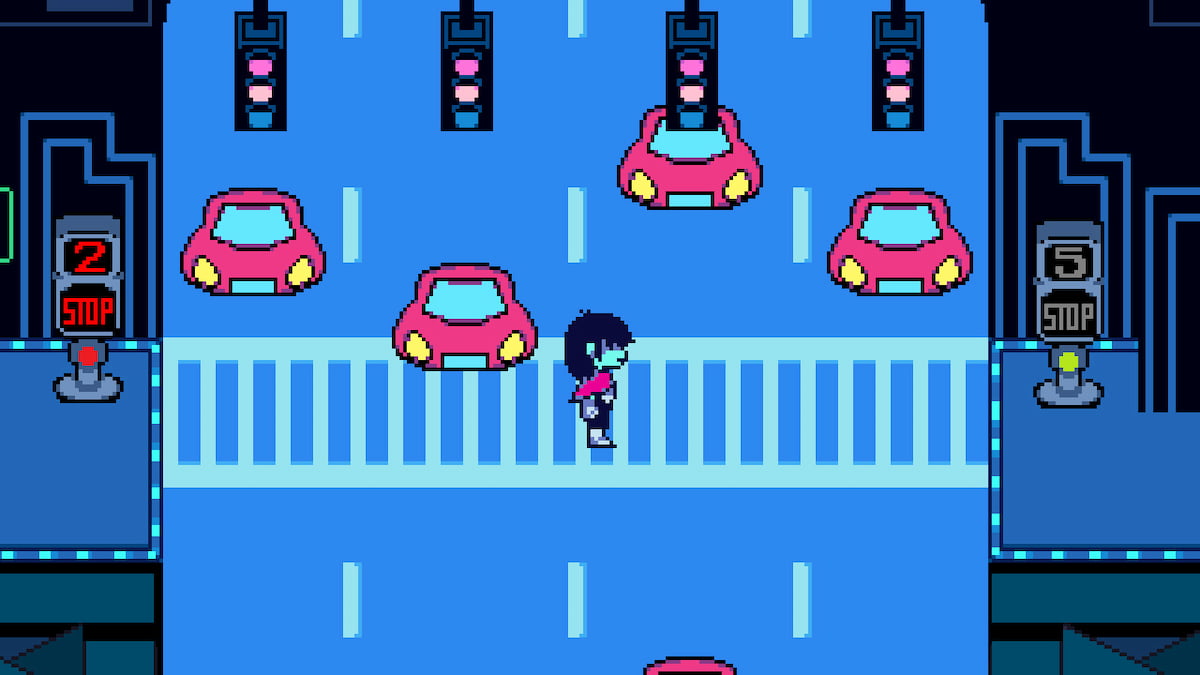
Part of Deltarune’s charm lies in being able to take in its unique visuals, look closely for any secrets, and immerse yourself in its world. By default, though, it’ll launch with a small, minimized screen, with no clear indicators on how to enter fullscreen.
Fortunately, not all hope is lost. There are a few quick and easy ways to enter fullscreen mode while playing Deltarune on any platform. That way, you’ll be able to see everything regardless of whether you’re new and trying out the game for the first time or a returning player hopping into a newly released chapter.
How to set Deltarune to fullscreen mode
There are three options you can use to set Deltarune to fullscreen mode:
- Press F4
- Press Alt + Enter
- Set Fullscreen to “On” in the in-game config menu.
The easiest option of these three for PC players is to press F4. Normally, the fullscreen option on Windows is F11, but Deltarune has it set to F4 instead. Pressing this will instantly set your game to fullscreen. You can also use Alt and Enter simultaneously to achieve the same effect.

Alternatively, if you’re using a controller and don’t have easy access to a keyboard and mouse, you can use Deltarune’s in-game config menu to set fullscreen mode to “on.” Here’s a complete step-by-step to doing so:
- Progress far enough into the main story to complete your menu tutorial.
- Press C (PC,) Y (Xbox,) Triangle (PlayStation,) or X (Switch) to open your menu.
- Scroll through the options until you’re hovering over the wrench button labeled “Config.”
- Scroll down to Fullscreen and turn it on.
You’ll also find options for turning auto-run on and off, adjusting your volume, and fine-tuning your controls as needed. Otherwise, you’ll now have fullscreen display active, allowing you to see Deltarune’s visuals much clearer. Similarly, you can reverse it at any point using any of these three options if you prefer its smaller display.


