


Call of Duty: Modern Warfare 4‘s multiplayer and DMZ modes require you to connect to the servers. To do so, you need to prevent the Attestation Failure error. Having the New Key Failed to Generate error automatically means that your device isn’t qualified for the online modes.
Thankfully for those wanting to dive into action with other players, you can solve these problems quite easily. Here are some of the fixes I’ve found for these issues.
Table of contents
How to solve the New Key Failed to Generate Error in Modern Warfare 4

Read what’s behind the latest news in gaming (with a bit of snark) by subscribing to the Destructoid Checkpoint newsletter!
Before we can solve this problem, we have to ensure two important things:
- You must turn on secure boot on your PC. Otherwise, this error will automatically pop up.
- You need to enable Trusted Platform Module 2.0 (TPM 2.0) to ensure that you do not get this error. TPM 2.0 will be enabled automatically once you activate secure boot.
Enable Secure Boot
To do this, you need to go to the BIOS settings of your device. You can do so by pressing the Delete button when you restart your PC. Alternatively, you can start your PC in recovery mode from advanced settings. I always press the Delete button because that is easier to do.
For the next part, you need to Google the exact setting and where Secure Boot can be found in your BIOS. I am on an MSI device, and the same location might not be valid for you. However, you will always find the Secure Boot option in your BIOS settings. Make sure to save the change after you enable it. You can check the status by opening the Command Button (Win+R) and typing msinfo32.
Updating the BIOS
You may also need to update your BIOS. If that’s the case, you can usually find the update applicable to your motherboard model on your brand’s official website.
Once done, use a FAT32 formatted USB device and copy the file. Open the BIOS settings (just like we did for enabling Secure Boot) and load into Flash mode. Don’t turn off your PC or remove the USB device until the update is complete.
Removing New Key Failed to Generate Error
Despite enabling both Secure Boot and TPM 2.0, you could still end up getting an attestation error. The easiest way to check this is using this official tool. If you are still getting an error, you will get an option to generate a key. In most cases, this can go wrong and result in the “removing new key failed to generate” error. Here’s how to fix it:

- Open Command Prompt.
- Enter: tpmtool getdeviceinformation
- You’ll find two major issues: Ready for Attestation: False and Is Capable for Attestation: False. Unless both are True, the problem will persist.
- Enter this in the Command Prompt and press Enter: sfc /scannow
- This will automatically remove all corrupt files. Also enter this command if there are corrupt files: DISM /Online /Cleanup-Image /ScanHealth
Restart your device, and there shouldn’t be any more problems. However, if you’re still stuck, you’ll need to perform the following actions:
- Open the PowerShell prompt.
- Enter the following commands: Get-Tpm and Get-TpmEndorsementKeyInfo. You’ll notice that there will be several empty/False/Disabled results.
- Run: Enable-TpmAutoProvisioning
- Run: Initialize-Tpm -AllowClear -AllowPhysicalPresence
You’ll notice that TpmReady will read as False, and RestartRequired will also read as False. If you have reached this point, good. Reboot your PC, and open the PowerShell prompt window once more.
- Run: Get-Tpm
- Run: tpmtool getdeviceinformation
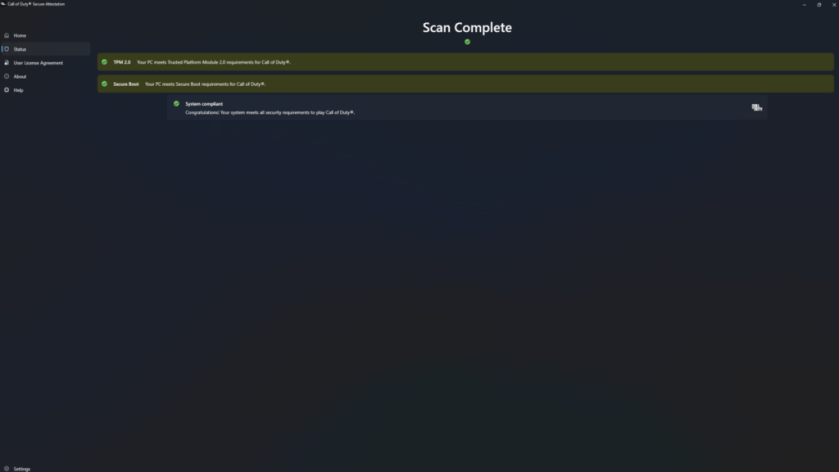
Once done, you’ll see that Ready for Storage and all the earlier False results are now True. Open the Attestation Check app from Activision and run a scan. It should be all green like the image shown above. If that’s the case, you should be set to enjoy Modern Warfare 4.


