


Scrooge McDuck’s ready to teach you an efficient new method for decorating the village in Disney Dreamlight Valley. In the Developed Decorating quest, he asks you to create a decor preset.
This is an important feature to master if you want to finish this quest and unlock a powerful new tool for filling up spaces more easily. It can be a bit tricky to navigate, though, so here’s how to create a decor preset in Disney Dreamlight Valley.
Table of contents
How to make decor presets in Disney Dreamlight Valley
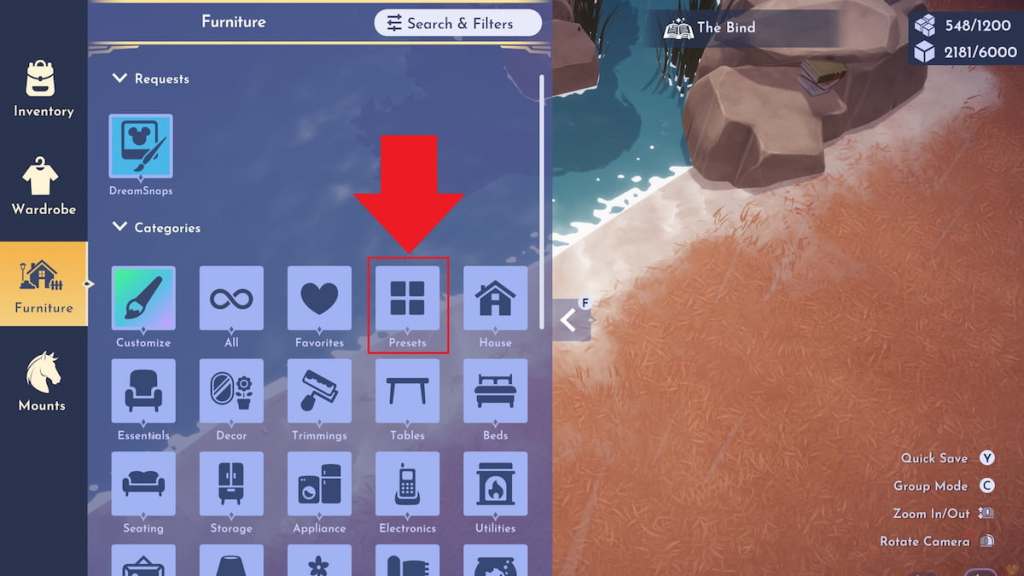
You can create a decor preset by selecting the Presets menu in Furniture mode, highlighting the items you want to include, and selecting the “Save preset” option. This process is a bit confusing, especially the first time around, so here’s a full step-by-step breakdown to help you through it.
- Open Furniture mode. Presets can only be made while in this mode, so begin the process by navigating to it.
- Locate the Presets tab. Look for the Presets option among the many icons you can find here. It’s the fourth icon over in the first row, sitting right between the Favorites and House tabs.
- Select the “Add new” option. Once you’re on the Presets page, click the “Add new” option near the top part of the screen.
- Highlight the items you want to include. After selecting the “Add new” option, you’ll be prompted to highlight all items you want in your preset. Click and drag over the assets you wish to include.
- Save your preset. Once you’ve selected all of the items you want in your preset, it’s time to save it. Select the “Save preset” option to choose a name for your set and add it to your collection.
If you’re still having trouble with any part of this process, you can follow along from start to finish using the video below. The Presets page also features a collection of already made options from the devs, but to make your own to add to this page, you must highlight and save your own build.
Developed Decorating quest walkthrough in Disney Dreamlight Valley
The Developed Decorating quest from Scrooge McDuck walks you through the preset-making process. It can be a bit of a tough mission to get done, but should be somewhat easier to tackle now that you know how to make decor presets.
Talk to Scrooge McDuck
First up, chat with Scrooge McDuck to obtain and start the Developed Decorating mission. If you usually skip through quest dialogue, you might not want to this time around, as he slowly explains all key details in the decor preset process.
Create a decor preset
Once he’s done breaking down the process for you, Scrooge McDuck asks you to make your very own decor preset. Follow the steps outlined above to create one for this mission. You can always delete it later, so don’t worry too much about what you make here.
Re-use a decor preset
The next step is to re-use a decor preset that you’ve made. Open Furniture mode again, click the Presets tab, and choose the decor preset you just made and saved on this page. Place it anywhere to re-use it.
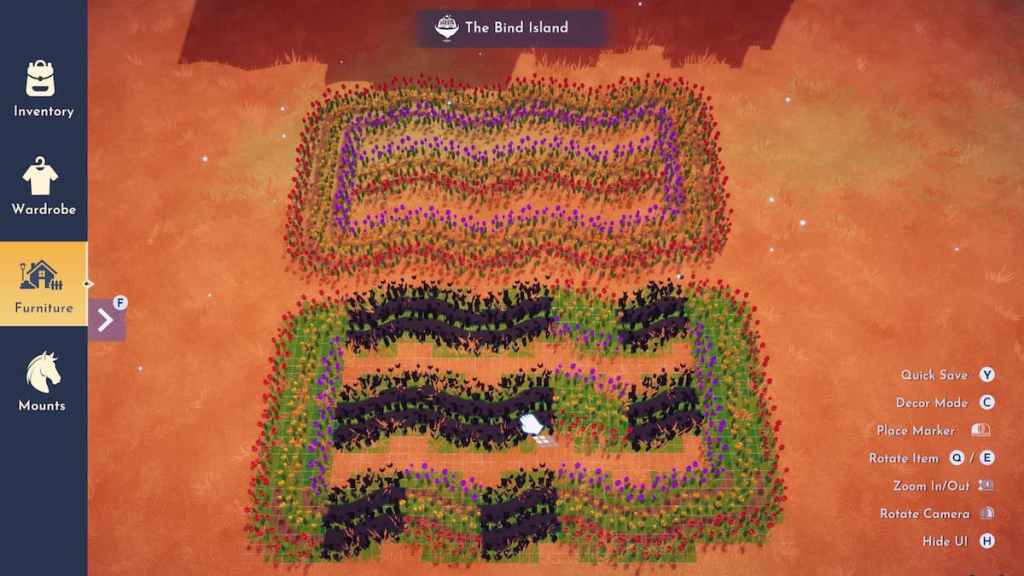
When re-using your preset, there’s a chance you may not have all of the materials required to build it. If this is the case, you’ll still be allowed to place it, but the parts of the preset you don’t have enough of will be blacked out, which means they’re a Mirage. You can then walk up to them and spend Star Coins to buy the required items to fill in the gaps or crafting materials to make it, depending on what the item is.
Decorate using the Picnic Decor Preset
After checking off the re-use a decor preset goal, chat with Scrooge McDuck to progress to the next step. He’ll then ask you to decorate using the Picnic Decor Preset he gives you. Return to the Presets page to locate this set under the Premade section, then place it anywhere you like.
Complete the Mirage part of the Picnic Decor Preset
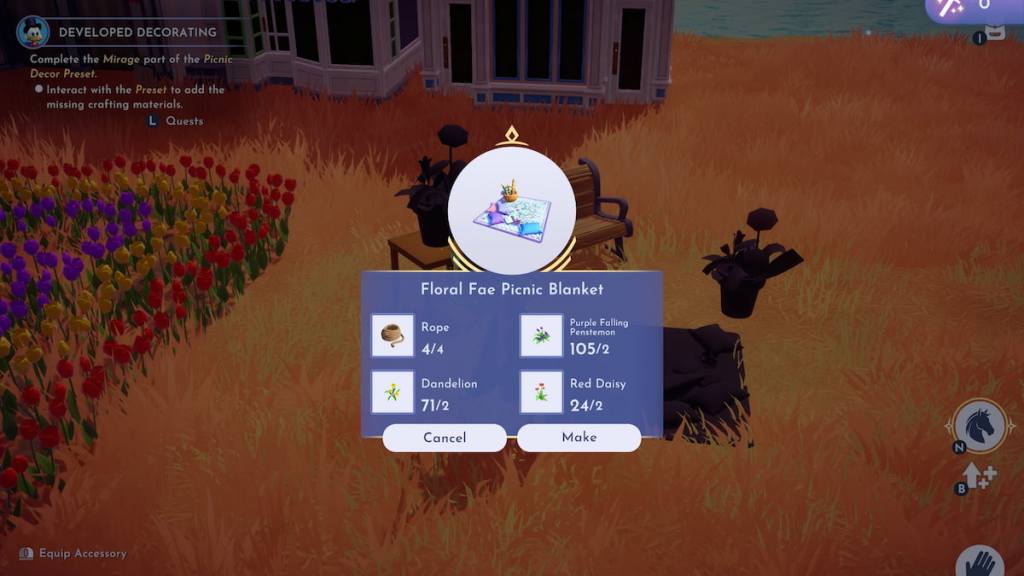
Once you’ve placed the Picnic Decor Preset, walk up to any dark black Mirage section on it, and spend the crafting materials required to make the missing pieces. For this quest, you only need to repair one of the Mirages to move on, so choose whichever one you like. Then, chat with Scrooge McDuck one more time to finish the Developed Decorating quest and officially become a decor preset master.
There are lots of other tricky gameplay features you may need some help navigating. Next, you might want to learn how to ask villagers to collect items for you, how to place stalls in DLC worlds, all the items villagers can collect, and how to change the Dream Castle skin.


