


After 15 long years of waiting, multiplayer finally received a much-needed upgrade for the Java Edition of Minecraft. Thanks to the handy friends list feature, playing with friends is finally easy to do without the need for extra steps like Realms and Servers.
Since you previously had to put in quite a bit of work to find a way to explore with friends in Java Edition, you may be unsure how to actually add friends using the improved multiplayer system. It’s a lot easier than you might expect, but it can be tricky to figure out the first time around, so here’s how to add friends in Minecraft Java Edition.
Table of contents
How to turn on the friends list in Minecraft Java Edition
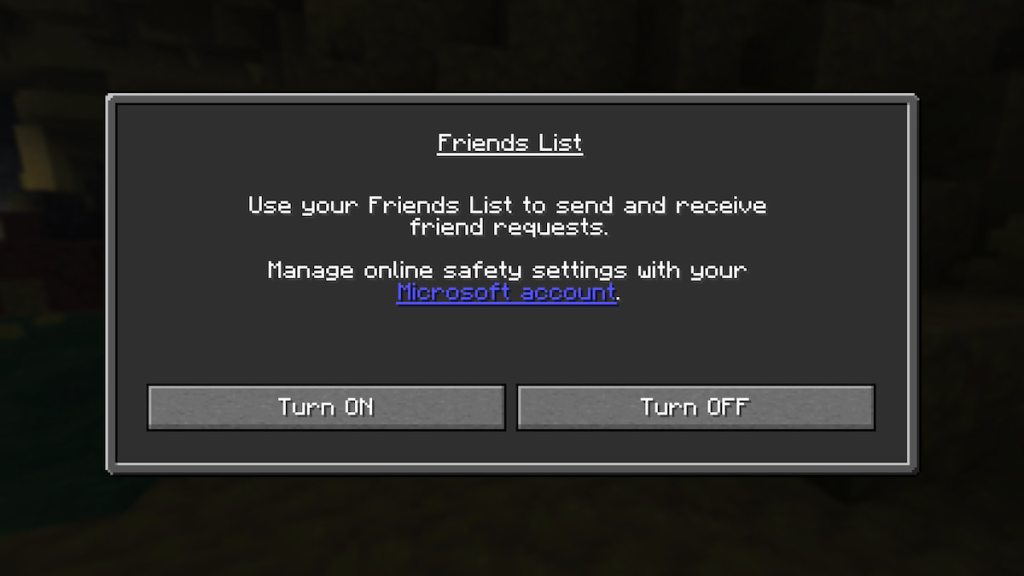
There are two different ways to turn on the friends list in the Java Edition of Minecraft:
- The first way is to select the Friends tab from the main menu, then select the “Turn ON” option. This only appears the first time around, but ends up vanishing if you don’t choose to activate it right away, making the option to use this feature a bit more difficult to locate. Once you do have the friends list turned on, the Friends tab permanently stays on the main screen, making it easy to access at any point.
- The second way is to select Options in the bottom left corner, choose the Online section, located in the upper right corner, and then toggle the friends list feature on.
You must have the friends list feature turned on to add friends to your game. This system can be freely turned on and off as desired using either of the methods listed above.
How do you add friends in Minecraft Java Edition?
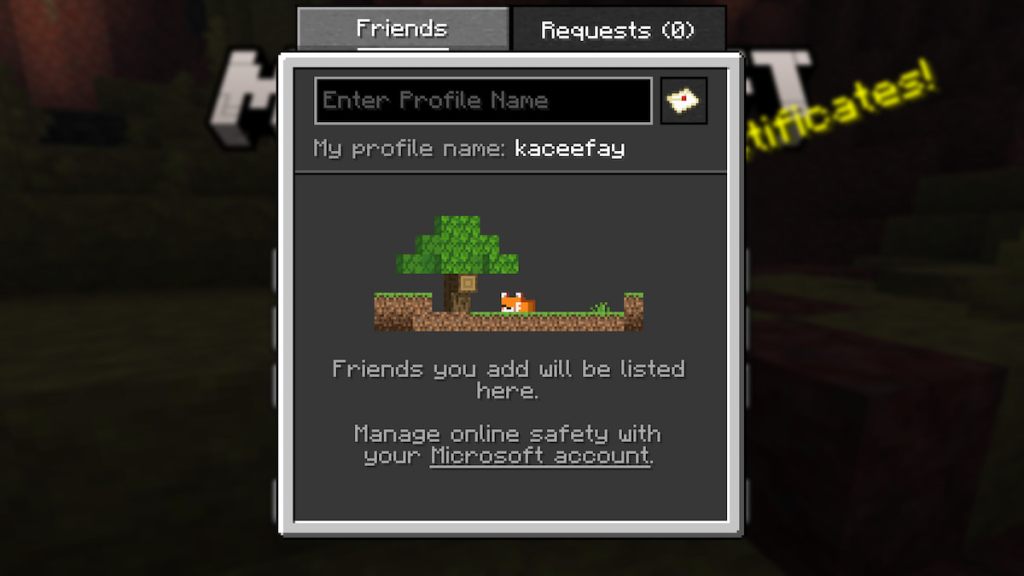
Once you’ve got the friends list turned on, click on the Friends icon from the main menu. Then, enter a friend’s name into the box to send them a request. Have them accept the request by selecting the same Friends page on their end, then switching over to the Requests tab under it. Once the request has been accepted, they’ll appear in your list of friends under this tab.
How to invite friends in multiplayer for Minecraft Java Edition
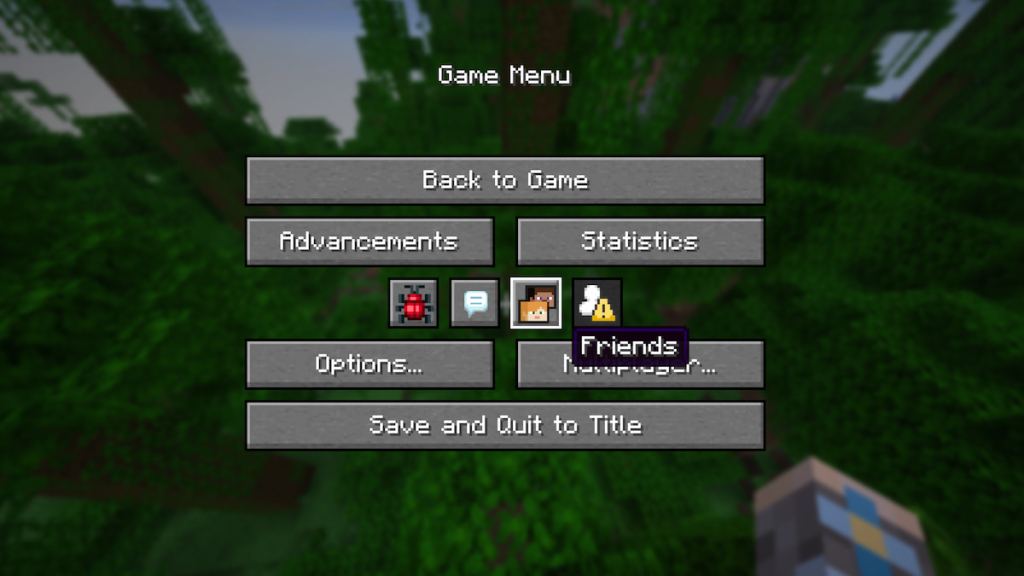
After adding a player to your friends list, you can invite them to join you in any world you’ve got, whether it be a fresh one you start up or an old seed you want to show off. To do so, load up the game you want to invite them to, open the game menu, and select the Friends icon. Invite your friend by finding and selecting them from this list.
Do you need a Realm or Server to play with friends in Minecraft Java Edition?
With the addition of the friends list for Minecraft Java Edition, you no longer need a Realm or Server to play with friends. Both of these methods are still available to use if you prefer them, but you can now also invite friends directly into any game you have using this handy feature.
There’s plenty to get done in Minecraft now that you’ve got a friend by your side. If you’re unsure what to do, consider trying to get and use a Golden Dandelion, make a Copper Golem, obtain the Lava Chicken music disc, or craft all copper tools.


