

Crimson Desert is now available on PC and console, and if you’re on the former platform, you can gain access to the save file quite easily.
Thanks to the different puzzles and quests, things can go wrong quite quickly on your save. While you can create multiple saves at different points, you can also manually create a backup. To do so, you’ll need to access the save file from where it’s stored on the PC.
How to find the Crimson Desert save file on your PC
The storage location for Crimson Desert save files will be in the root drive of your system. While you can manually change the location from Steam settings (game properties), I assume you’re yet to do that. If you’re using the default settings, here’s the path for finding all the save files.
- C:\Users\<Username>\AppData\Local\Pearl Abyss\CD\save
The path for you will be the same, with only the change being for the <Username>. This folder will be located in your root drive (which is the C drive for my PC).
Once you reach the path, you’ll find the save folder. Open it, and there will be two subfolders within. The numbered folder contains all the save files that you’ll create inside the game.
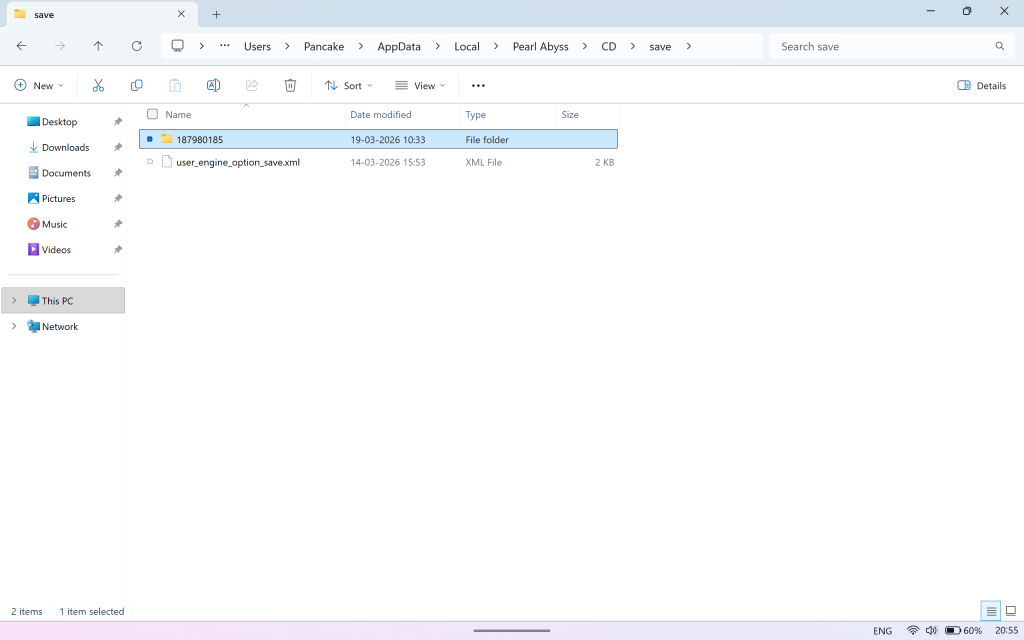
If you want to manually create a backup for whatever reason it might be, you need to remove the save file and store it in a safe place. That way, you can also use it as a restore point if you overwrite the save file in the game.
While I haven’t tested it out, you should be able to use the save file of another player. This is possible since Crimson Desert is a single-player exclusive experience. However, I have yet to test this method out as of writing. What I have tested, however, is to manually create backups of your save file and use them to restore past progression.


