

If you’re looking to get the best possible experience in Dune Awakening, minimizing lags and stutters should be your priority, and this guide will help to smoothen your gameplay experience.
While I expect a fair few issues (given that we are still in early access), my previous experiences with both betas were pretty smooth. With the base client remaining the same, here’s a set of actions to take before you create your base on Hagga Basin.
Table of contents
Best tips and tricks to avoid lag in Dune Awakening
This section will include some basic pointers that are always important when you’re playing a new game. Despite being simple in nature, it’s very easy to miss one or all of them in the excitement of trying to enjoy a fresh launch.
- Update your drivers: This has been a common problem with the last few major video game launches on PC, especially so if you’re using an Nvidia card. Make sure that your driver is updated to the latest available version. If not, you can either manually download and install the latest driver or use a first-party tool (available for both AMD and Nvidia) to get the job done.
- Turn off V-Sync: I have applied This rule of thumb for almost every game I play on my PC. Even if it’s an older game that should be a breeze for my hardware, the marginal difference from using V-Sync is minimal. It’s better to keep it turned off for the time being.
- Cap the FPS: Playing with uncapped FPS makes gameplay smooth, but it’s also a common cause of stutters and lags (especially if the client isn’t well-optimized). It’s better to cap the max FPS to a reasonable number now.
The next section will include preferable graphical settings for you to use to avoid any unnecessary lags or stutters during your gameplay.
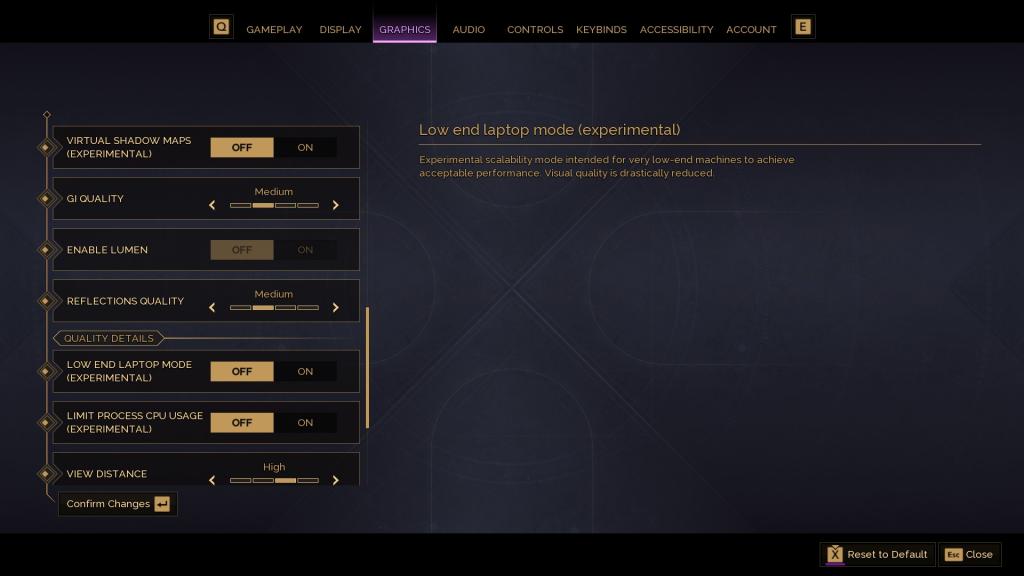
Best graphics settings for Dune Awakening
Here’s a set of settings that I am running on my system, and so far it’s performing well despite a false alarm over RAM and Storage Space.
- Resolution: Your preference
- Window Mode: Windowed Fullscreen
- Upscaling Quality: Medium
- Upscaling Method: DLSS
- Frame Generation Method: FSR
- Override Upscaling Preset: On
- Resolution Scale: 50
- DLSS Upscaling Quality: Performance
- Shadows: Medium
- Virtual Shadow Maps:Off
- GI Quality: Medium
- Enable Lumen: Off
- Reflections Quality: Medium
- Low End Laptop Mode: Off
- Limit Process CPU Usage: Off
- View Distance: High
- Post Processing: Medium
- Effects Quality: Medium
- Texture Quality: Medium
- Foliage Quality: Medium
This will ensure you can enjoy the gameplay without getting any unrequired restrictions. If you’re not finding any servers at launch, there’s an easy solution for that problem.


