


FC 27 is now out on PC and consoles, and your first bit of business should be to adjust the Camera and Controller. If you have played FC 26 on the same account and platform, your previous settings will be retained. However, you’ll still need to introduce some changes to get an advantage over your opponents. If you’re new, you have to complete the entire process from scratch.
Let’s find out how to get the best possible settings in the Camera department first.
Table of contents
Best Camera settings in FC 27
- Online 11v11 Camera: Co-op
- Offline 11v11 Camera: Co-op
- Player Career 11v11 Camera: Co-op
- Clubs 11v11 Camera: Co-op
- Rush Camera: Rush Tactical
- The Grounds Rush Camera: Rush Tactical
- The Grounds Street Football Camera: The Grounds Pro Club
- Be-A-Goalkeeper Camera: Co-op
- Be-A-Goalkeeper Save UI: On
- Power Shoot Zoom: On
- Horizontal Camera Sensitivity: 20
- Vertical Camera Sensitivity: 20
- Inverse Horizontal Camera Control: Off
- Inverse Vertical Camera Control: Off
- Custom Camera Settings: Custom
- Height: 20
- Zoom: 0 if your monitor is 21″ or less (otherwise, set it to 4).
- Pro Camera Zoom: 10
- Pro Camera Speed: 10
- Pro Camera Swing: 10
- Camera Shake Visuals: Off
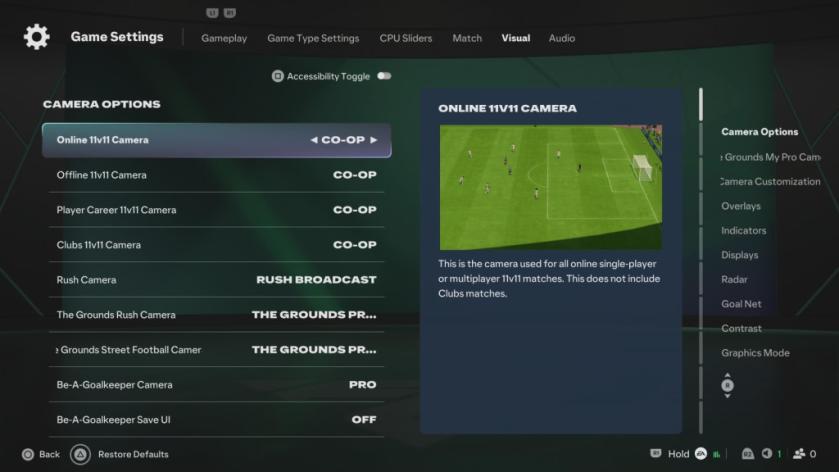
Setting the camera to Co-op is a must, and more so this year, as you’ll need to have a complete view of the pitch. I have tested all the viable camera angles, and Co-op simply leads to the best results.
Best Controller settings in FC 27
- Preset: Competitive
- Shot Assistance: Precision. This is clearly the way to go, and it’s worth learning how the system works.
- Through Pass Assistance: Semi
- Lobbed Through Pass: Semi
- Ground Pass Assistance: Assisted
- Cross Assistance: Assisted
- Lob Pass Assistance: Assisted
- Pass Receiver Lock: Late
- Precision Pass Sensitivity: Normal
- Clearance Assistance: Classic
- Defending: Advanced Defending
- Professional Fouls: On
- Pass Block Assistance: On
- Auto Switching: Usually, I just go with Air Balls and Loose Balls. However, there might be a case to go manual switching in Air Balls. Test both out and see which one works better for you.
- Auto Switching Move Assistance: Low if you’re a beginner, None otherwise.
- Right Stick Switching: Class
- Right Stick Switching Reference: Player Relative
- Right Stick Switching Sensitivity: 4
- Next Player Switching: Classic
- Reaction Time Calibration: Off
- Reaction Time Calibration Sensitivity: 0
- Player Lock: On
- Simplified Skill Moves: Off
- Save Assistance: Assisted
- Camera Pan Speed: Default
- Right Stick Remap: Off
- L1/R1 and L2/R2 Remap: Off
- Analog Sprint: Off
- Trigger Effect: Off
- User Vibration: Personal Preference
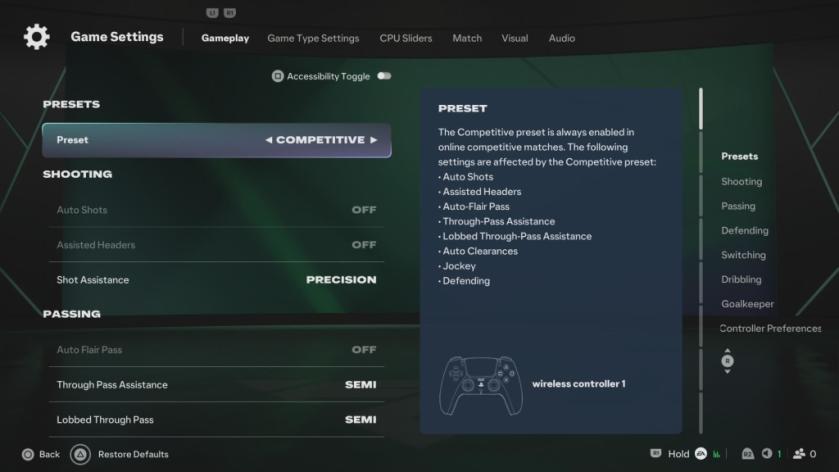
That’s it when it comes to the best Controller settings. You should follow the same settings irrespective of the platform you’re playing the game on. If you’re on a PC and yet to tweak your settings, have a look at this guide.


