

BloxStrike is the closest experience you can get to playing real Counter-Strike 2. In some respects, such as hitreg, BloxStrike is even better than CS2. Now, good aim, game sense, and strategy are what ultimately win you games. Still, there is a reason many pros stick to similar settings: they matter. With that in mind, we prepared the following guide on the best BloxStrike settings and crosshairs to help you stay at the top of the scoreboard in every match.
Table of Contents
Best BloxStrike Settings
Settings in BloxStrike are separated into four categories: video, audio, game, and keybinds. Game and keybind settings are the most important, as they let you adjust your mouse sensitivity and crosshair appearance. You can find the best settings for each category in the sections below, but don’t fret about experimenting with them, since some settings come down to personal preference.
Video Settings


| Setting | Recommended |
|---|---|
| Global Shadows | Off |
| Glass Shatter | Off |
| First Person Tracers | On |
| Muzzle Flash | Off |
| Ragdolls | Off |
The best video settings for BloxStrike focus on improving clarity and performance. If you care more about graphics, feel free to enable Global Shadows, as that setting has the most significant impact on the game’s visual quality.
Audio Settings
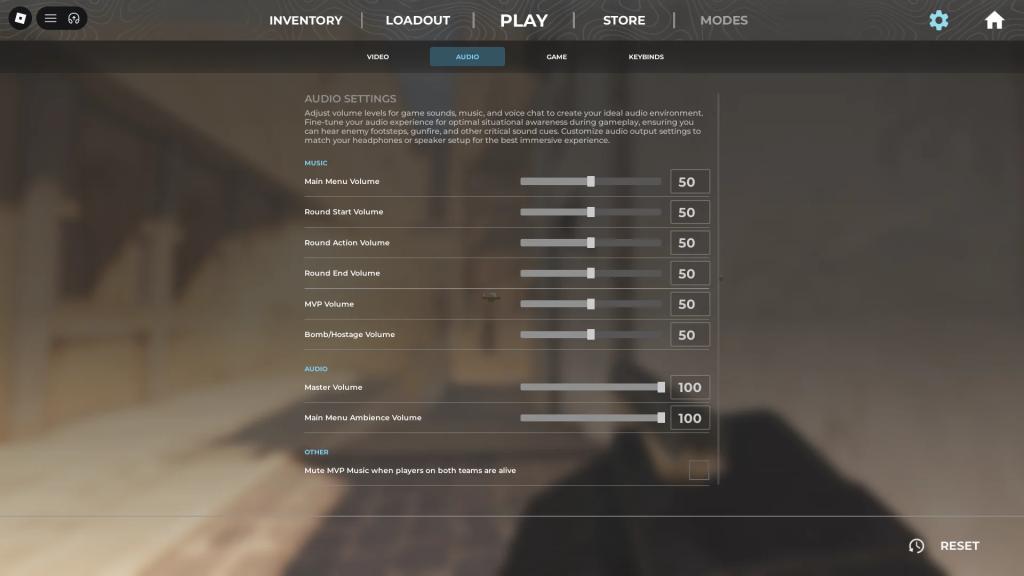
| Setting | Recommended |
|---|---|
| Main Menu Volume | 50 |
| Round Start Volume | 50 |
| Round Action Volume | 50 |
| Round End Volume | 50 |
| MVP Volume | 50 |
| Bomb/Hostage Volume | 50 |
| Master Volume | 100 |
| Main Menu Ambience Volume | 100 |
| Mute MVP Music when players on both teams are alive | Off |
Audio settings are pretty straightforward, since you can only adjust the volume of announcements and other audio cues. That said, you are best off leaving all audio settings in BloxStrike at their default values.
Item and Hud Settings
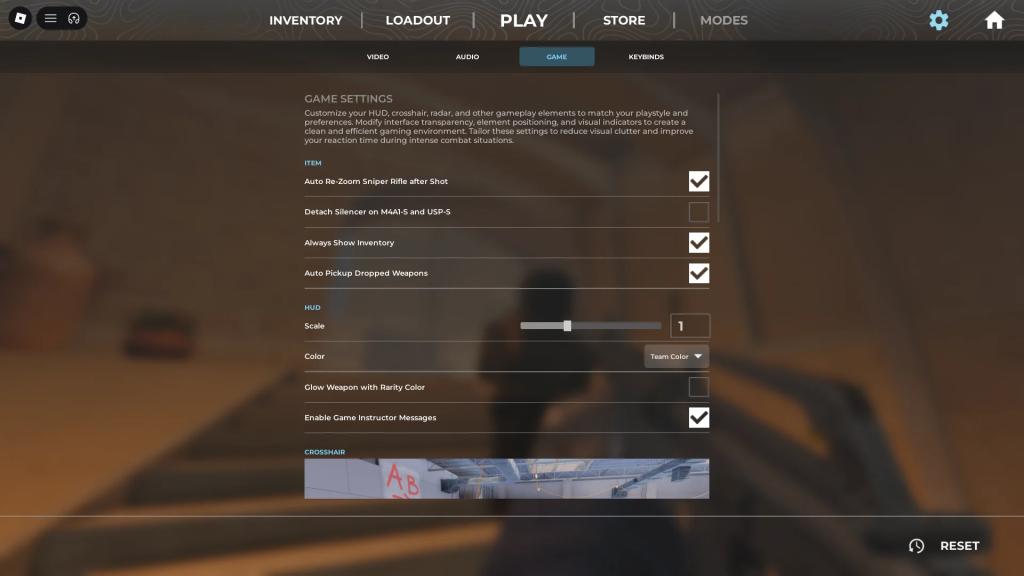
| Setting | Recommended |
|---|---|
| Auto Re-Zoom Sniper Rifle after Shot | On |
| Detach Silencer on M4a1-S and USP-S | Off |
| Always Show Inventory | On |
| Auto Pickup Dropped Weapons | On |
| Scale | 1 |
| Color | Team Color |
| Glow Weapon With Rarity Color | Off |
| Enable Game Instructor Messages | Off |
Item and HUD settings are best left at their default values, except for the Game Instructor Messages, which are unnecessary, so feel free to turn them off.
Crosshair Settings
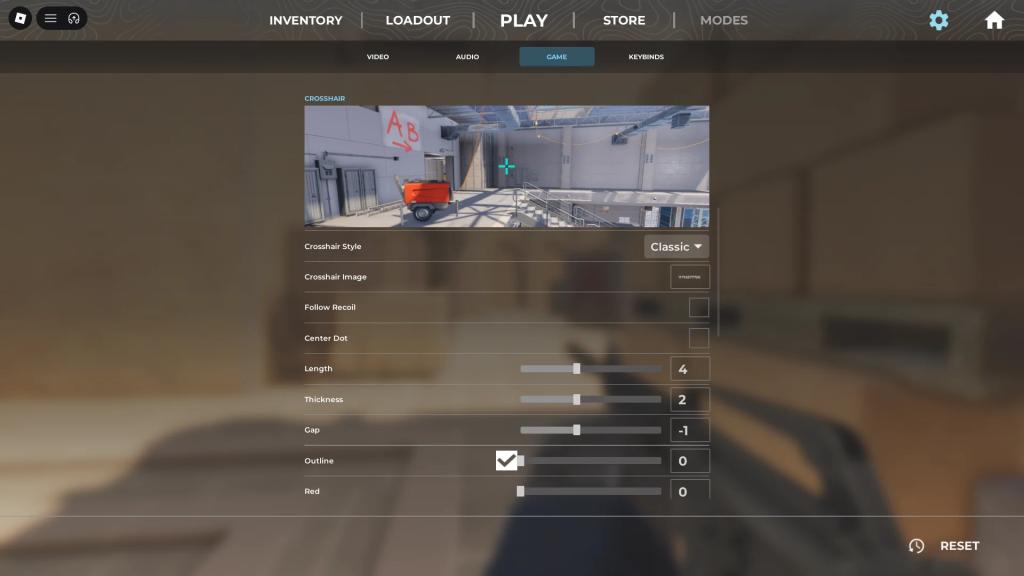
Similar to CS2, crosshair settings vary from player to player, especially among the pros. You can use a classic (expands on movement), static, or an image as a crosshair. Here are some crosshair presets used by pro players if you need inspiration for creating a crosshair that you can stick with in the long run:
| Player | Crosshair | Settings |
|---|---|---|
| donk (Spirit) | 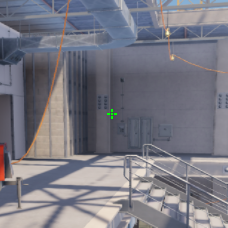 | Crosshair Style: Classic Static Follow Recoil: No Center Dot: Yes Length: 1 (0.5) Thickness: 1 Gap: -3 Outline: No Red: 0 Green: 255 Blue: 0 Alpha: Yes – 255 T Style: No |
| ZywOo (Vitality) | 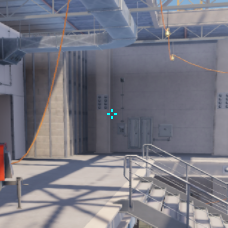 | Crosshair Style: Classic Static Follow Recoil: No Center Dot: No Length: 1 (1.5) Thickness: 1 (0.1) Gap: -3 Outline: No Red: 0 Green: 255 Blue: 255 Alpha: Yes – 255 T Style: No |
| m0NESY (Falcons) | 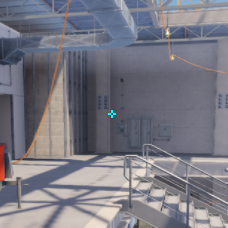 | Crosshair Style: Classic Static Follow Recoil: No Center Dot: No Length: 1 Thickness: 1 Gap: -4 Outline: No Red: 0 Green: 255 Blue: 255 Alpha: Yes – 255 T Style: No |
| NiKo (Falcons) | 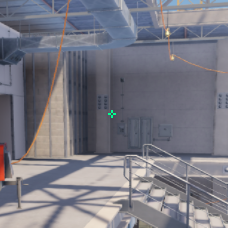 | Crosshair Style: Classic Static Follow Recoil: No Center Dot: No Length: 1 Thickness: 1 (0) Gap: -4 Outline: No Red: 0 Green: 255 Blue: 145 Alpha: Yes – 255 T Style: No |
| kyousuke (Falcons) | 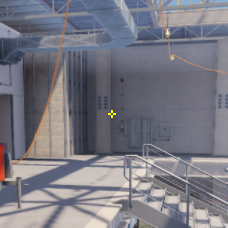 | Crosshair Style: Classic Static Follow Recoil: No Center Dot: No Length: 1 Thickness: 1 Gap: -4 Outline: No Red: 255 Green: 255 Blue: 0 Alpha: Yes – 255 T Style: No |
| Twistzz (Faze) | 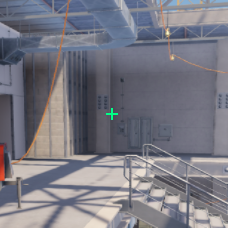 | Crosshair Style: Classic Static Follow Recoil: No Center Dot: No Length: 2 Thickness: 1 (0) Gap: -5 (-7) Outline: No Red: 0 Green: 255 Blue: 135 Alpha: Yes – 255 T Style: No |
| XANTARES (Aurora) | 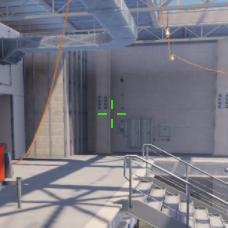 | Crosshair Style: Classic Static Follow Recoil: No Center Dot: No Length: 3 Thickness: 1 (0.5) Gap: 0 Outline: No Red: 50 Green: 255 Blue: 0 Alpha: Yes – 200 T Style: No |
| w0nderful (Natus Vincere) | 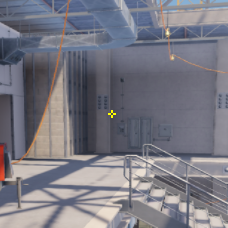 | Crosshair Style: Classic Static Follow Recoil: No Center Dot: No Length: 1 Thickness: 1 Gap: -4 Outline: No Red: 255 Green: 255 Blue: 0 Alpha: Yes – 255 T Style: No |
| KSCERATO (FURIA) | 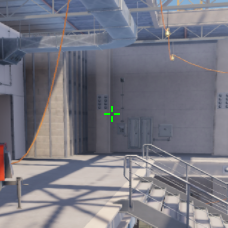 | Crosshair Style: Classic Static Follow Recoil: No Center Dot: No Length: 2 Thickness: 1 (0) Gap: -3 Outline: No Red: 0 Green: 255 Blue: 0 Alpha: Yes – 255 T Style: No |
| sh1ro (Spirit) | 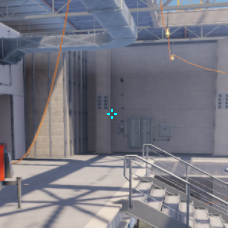 | Crosshair Style: Classic Static Follow Recoil: No Center Dot: No Length: 1 (0.9) Thickness: 1 (0.9) Gap: -3 (-2.9) Outline: No Red: 0 Green: 255 Blue: 255 Alpha: Yes – 255 T Style: No |
How to Find Crosshair Image IDs on Roblox Store
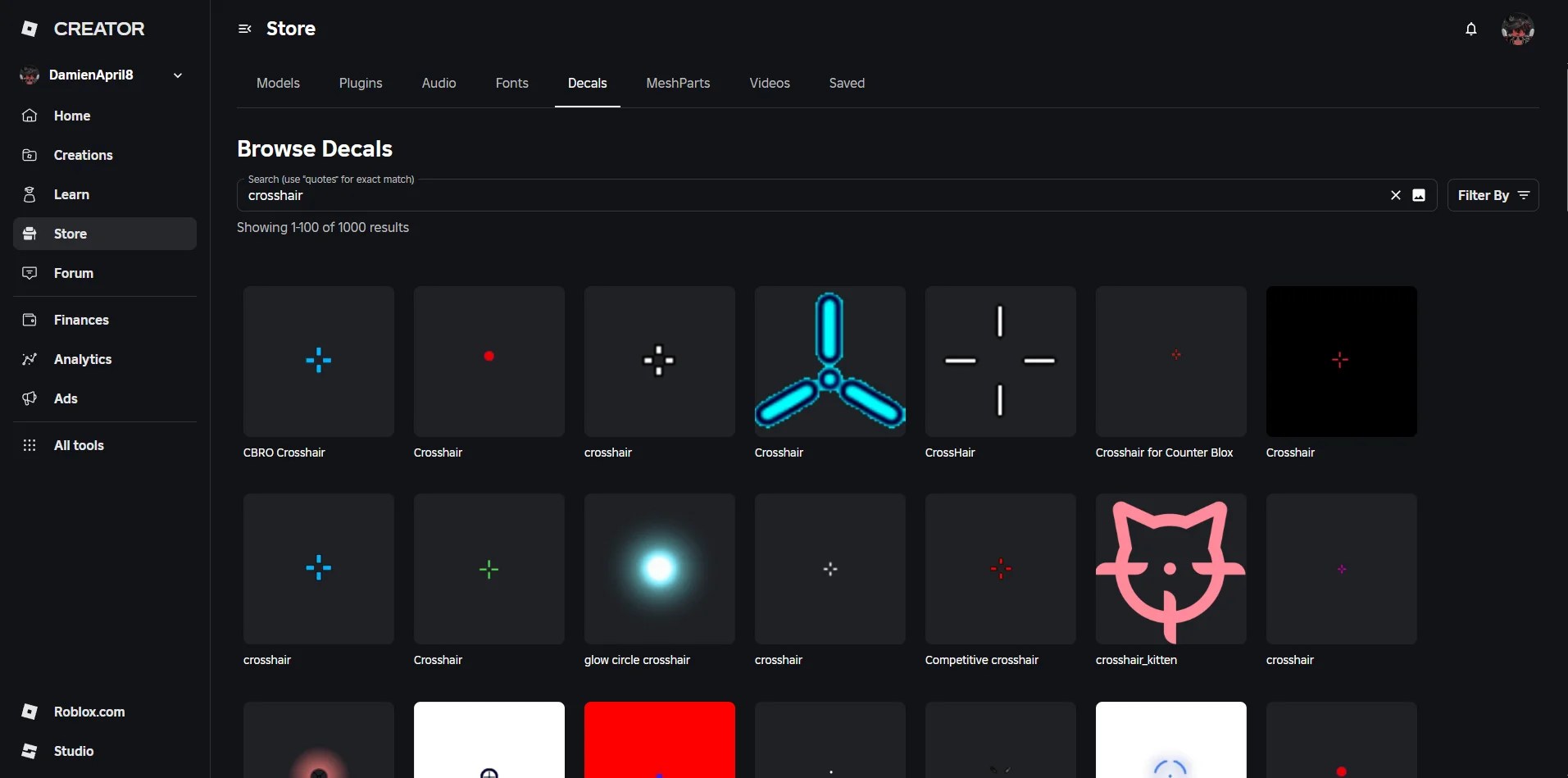
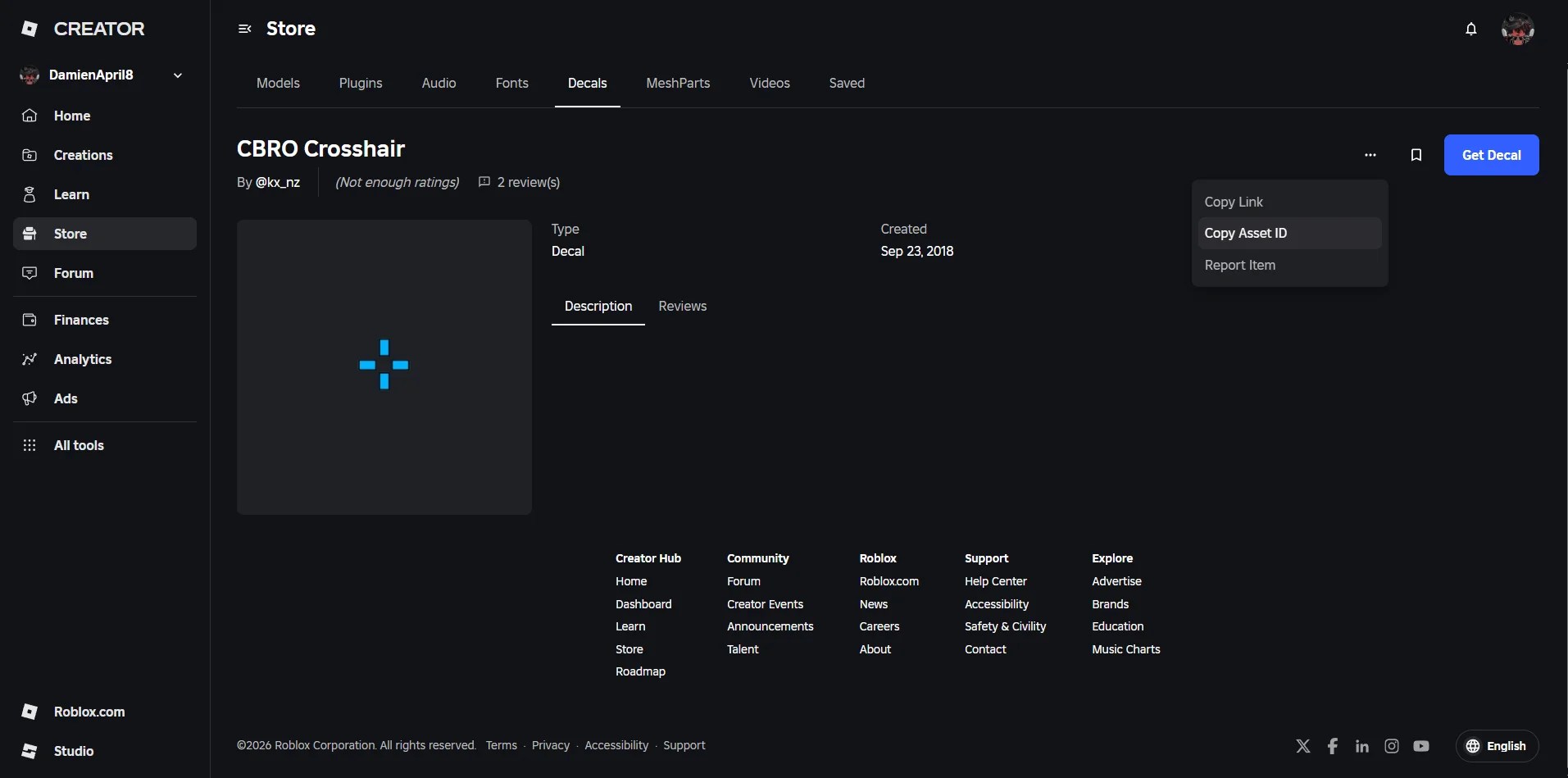
Besides being able to customize the crosshair on your own, you can also use a decal from the Roblox Creator Store as your crosshair. Follow the steps below to use a decal as your crosshair in BloxStrike:
- Go to the Decals section of the Roblox Creator Store
- Click on a decal you like, open up the dropdown (… icon in the upper-right corner of the page), and copy its asset ID
- Change the Crosshair Style in-game to Image
- Paste the asset ID you copied into the Crosshair Image entry field
If the decal doesn’t load up and you end up having no crosshair at all, try a different decal or switch back to a standard crosshair. You can also submit a bug report on the official BloxStrike Discord server.
Viewmodel, Radar, and Other Settings
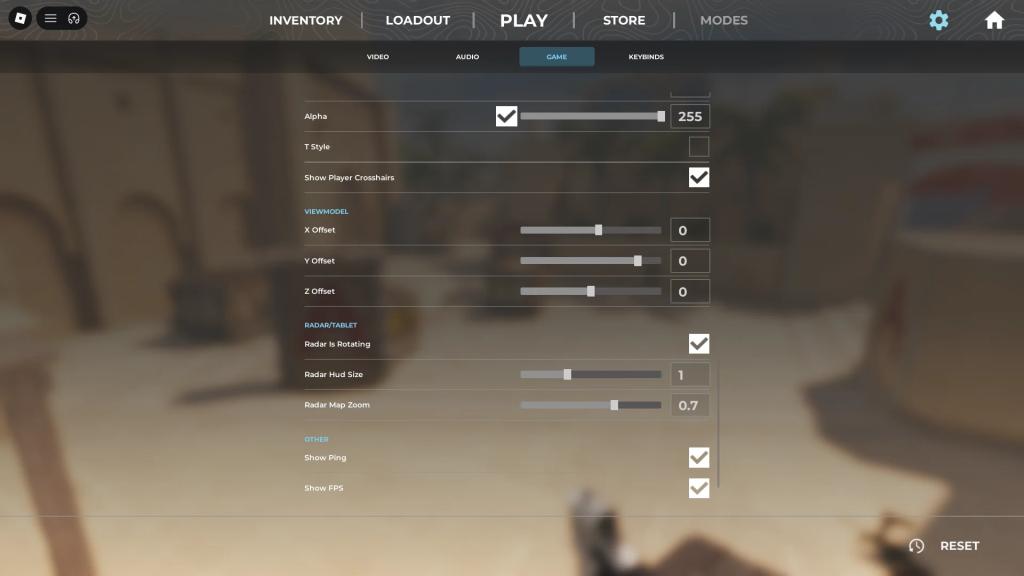
| Setting | Recommended |
|---|---|
| X Offset | 0 |
| Y Offset | 0 |
| Z Offset | 0 |
| Radar is Rotating | On |
| Radar Hud Size | 1.3 |
| Radar Map Zoom | 0.7 |
| Show Ping | On |
| Show FPS | On |
Viewmodel settings allow you to reposition your hands and weapons on the screen, and they are best left at their default values. Radar settings should be adjusted according to your own preferences. Ping and FPS meters are always handy for monitoring purposes.
Mouse Sensitivity and Keybinds
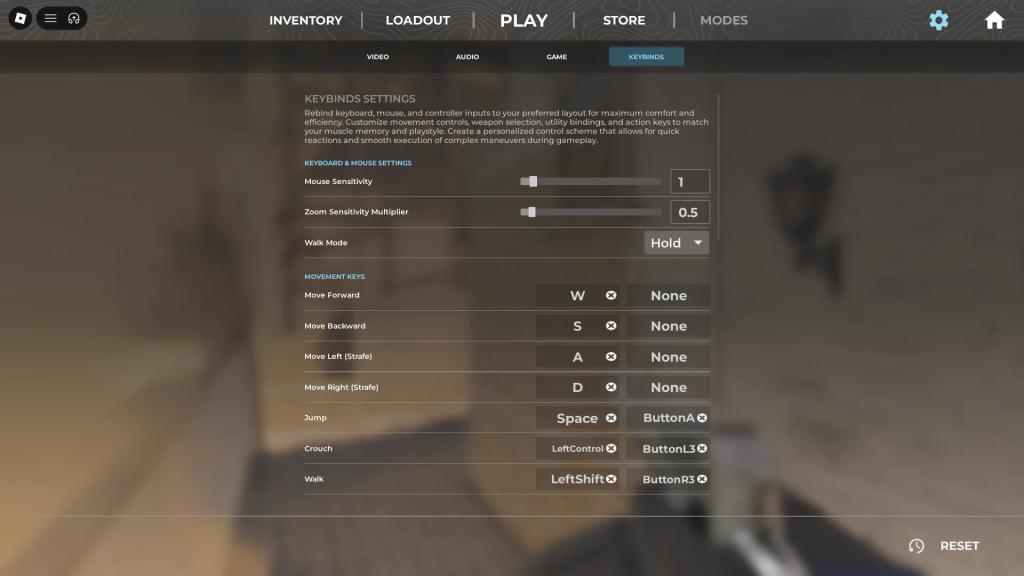
Keybinds in BloxStrike mimic the default keybinds in CS2, but feel free to rebind keys according to your preference. More importantly, set your mouse sensitivity first by playing a match and adjusting it each round. Depending on your mouse’s DPI, you may need to reduce or increase your mouse sensitivity until you feel comfortable. Here are the mouse DPI and sensitivity settings some of the best CS2 players use if you need a reference for finding your own optimal sensitivity in BloxStrike:
| Player | Mouse DPI | Mouse Sensitivity | Effective DPI | Zoom Sensitivity |
|---|---|---|---|---|
| donk (Spirit) | 800 | 1.25 | 1000 | 1 |
| ZywOo (Vitality) | 400 | 2 | 800 | 0.8 |
| m0NESY (Falcons) | 400 | 2.3 | 920 | 1 |
| NiKo (Falcons) | 800 | 0.7 | 560 | 1 |
| kyousuke (Falcons) | 800 | 1.28 | 1024 | 1 |
| Twistzz (Faze) | 400 | 1.59 | 636 | 1 |
| XANTARES (Aurora) | 400 | 2.3 | 920 | 1.1 |
| w0nderful (Natus Vincere) | 400 | 2.6 | 1040 | 1 |
| KSCERATO (FURIA) | 800 | 1.25 | 1000 | 1 |
| sh1ro (Spirit) | 800 | 1 | 800 | 1 |
That does it for our guide on the best BloxStrike settings and crosshairs. Let us know in the comments below which settings you are running with, and what crosshairs and mouse sensitivity settings you want added to the lists.
BloxStrike FAQs
You can open the settings menu while in a round by pressing the “N” key on your keyboard.
You can get more coins in BloxStrike by finishing matches. The better your performance in the match is, the more coins you get. However, if you leave a match before it’s over, you won’t get any coins.
Yes, BloxStrike is available on all platforms.


