

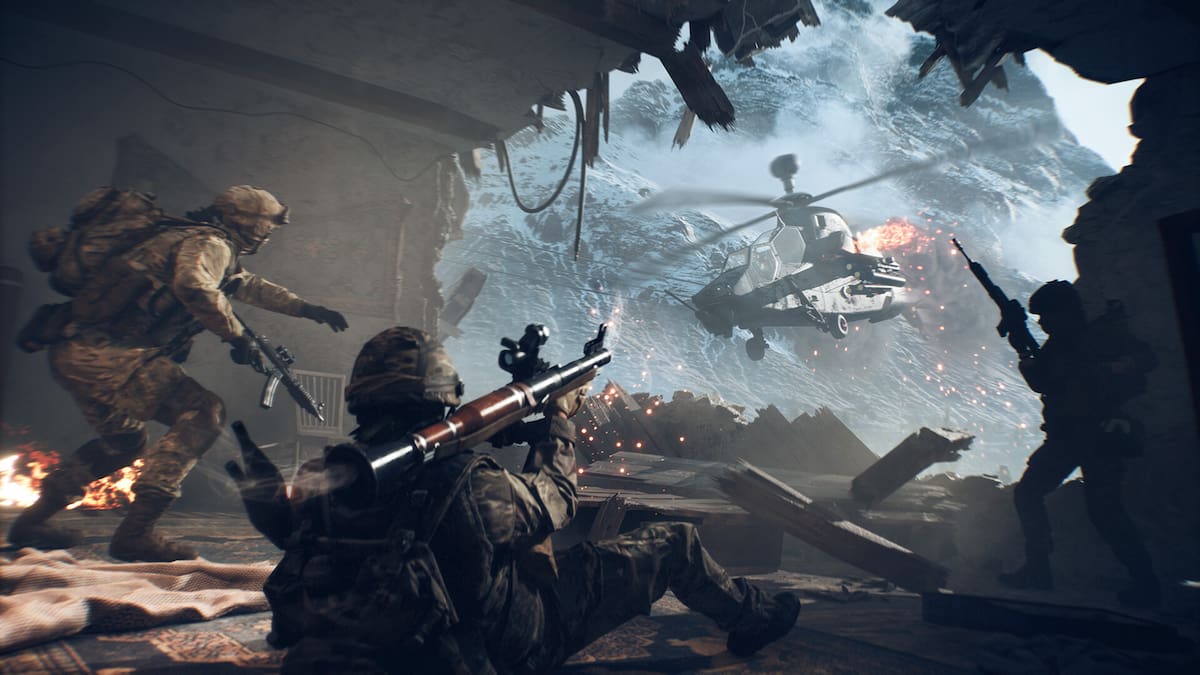
Battlefield 6 is now out worldwide on PC and consoles, and you can tweak the graphics settings to get the best performance.
Being a competitive shooter, it’s essential to ensure there are no sudden lag spikes or frame drops. If you have a consistent FPS at all times, the visual performance will be smoother, offering you a key edge over your opponents.
This guide will help you get the most out of your hardware as long as it meets the requirements to run Battlefield 6.
Table of contents
Best tips and tricks for smooth graphics in Battlefield 6
There are some basic steps that you’ll need to get right before jumping into a game in Battlefield 6.
- Ensure your graphics drivers are up to date. Whether you’re using an Nvidia card or one from AMD, check whether there’s an available update. Having updated graphic drivers will be key to getting the best visual performance.
- I will recommend turning off Vsync unless your hardware is pretty strong and comfortably clears the recommended requirements. You’ll be losing very little by turning it off, while putting less stress on your system.
- Until we get a few patches rolling out, it’s better to cap the FPS. If your hardware is close to the minimum requirements, set it to 60 FPS. Otherwise, you can crank it up to 90 FPS. While you could potentially lose on more frames, having a cap will stabilize the number of frames you’re hitting every moment.
Let’s look at what I am using on my system to get the best visual performance.
Best graphic settings in Battlefield 6
My current setup has the following specifications: AMD Ryzen 5600G, NVIDIA RTX 3060 12 GB, and 16 GB of DDR5 RAM.

- Performance Preset: Custom
- Graphics Quality: Medium
- Texture Quality: Medium
- Texture Filtering: Medium
- MEsh Quality: Medium
- Terrain Quality: Medium
- Undergrowth Quality: Low
- Effects Quality: Low
- Volumetric Quality: Low
- Lighting Quality: High
- Local Light and Shadow Quality: Low
- Sun Shadow Quality: Medium
- Shadow Filtering: PFC
- Reflection Quality: Medium
- Screen Space Reflections: Low
- Post Process Quality: Low
- Fixed Resolution Scale: 100
- Frame Rate Limiter: On
- Frame Rate Limit: 90
- Dynamic Resolution Scale: Off
- Nvidia Reflec: Enabled+ Boost
- Anti-Aliasing: Off
- Upscaling Technique: Off
- Future Frame Rendering: Off
- Resolution: Native
- Vsync: Off
Like our content? Set Destructoid as a Preferred Source on Google in just one step to ensure you see us more frequently in your Google searches!


