

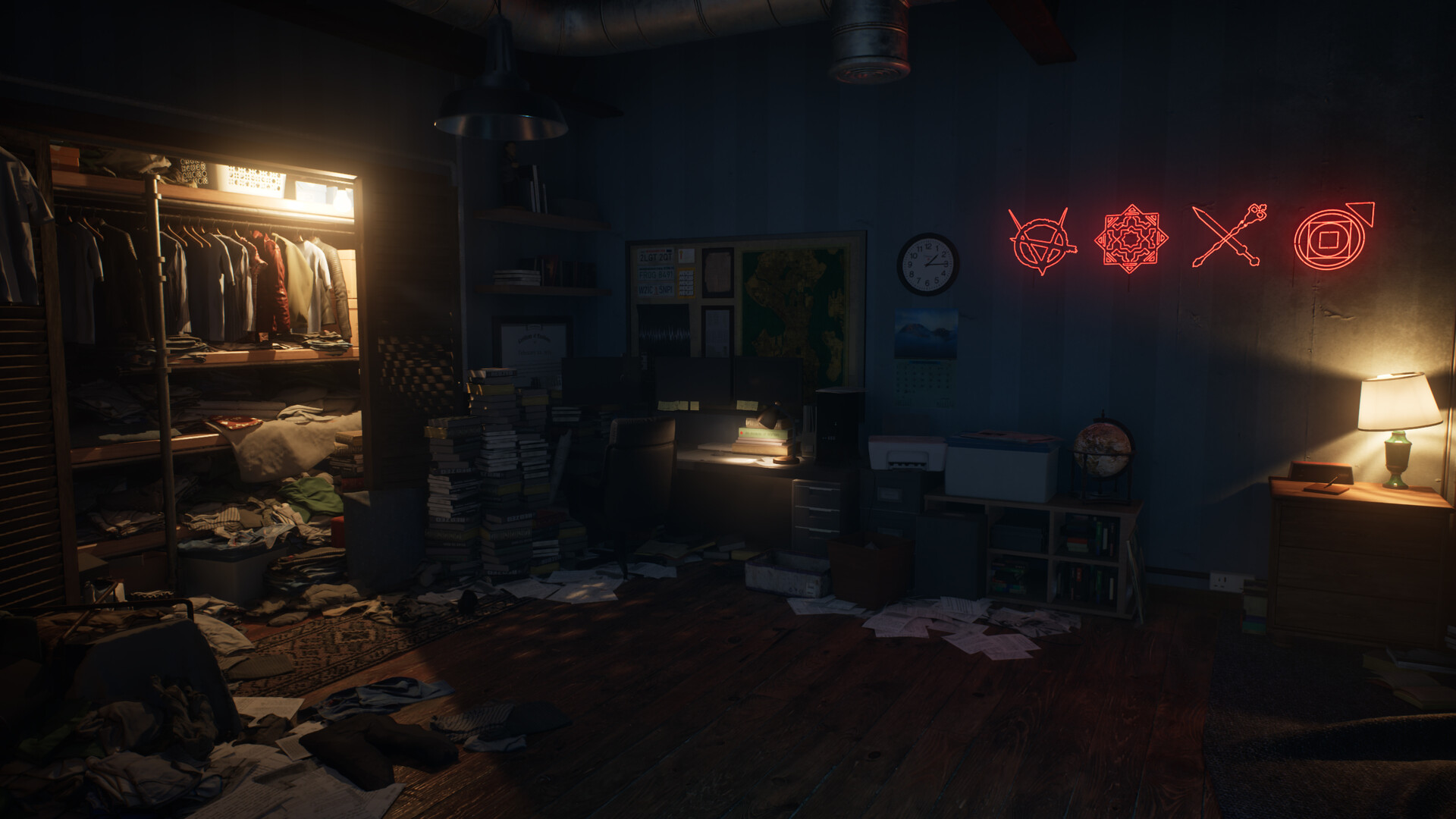
Vampire The Masquerade Bloodlines 2 is now available worldwide on PC and consoles, and there are different controls to master.
If you’re playing on PC, you can either use your mouse and keyboard or opt for a controller. If you’re on a console, your hands are tied to the default controller. This guide will list all the applicable controls so you can memorize them and get ahead with your adventures in Seattle.
Table of contents
All PC controls in Vampire The Masquerade Bloodlines 2
The table below has information on every bit of control that applies to your PC if you’re playing Vampire The Masquerade Bloodlines 2 with a keyboard and a mouse.
| Control | Input |
|---|---|
| Move Forward | W |
| Move Backwards | S |
| Move Left | A |
| Move Right | D |
| Jumo/Glide | Space |
| Crouch | C |
| Run | Left Shift |
| Heavy/Light Attack | LMB |
| Dash/Vampiric Sprint | Ctrl |
| Feed | F |
| Telekinesis | Q |
| Blood Elixir | 1 |
| Mending Elixir | 2 |
| Potence Elixir | 3 |
| Fortitude Elixir | 4 |
| Abilities Targeting | RMB |
| Strike | RMB+1 |
| Relocate | RMB+2 |
| Affect | RMB+3 |
| Mastery | RMB+4 |
| Interact | E |
| Heightened Senses | V |
All controller keybindings in Vampire The Masquerade Bloodlines 2
The table below has information on all the default keybindings as applicable for your consoles. The controls mentioned in this table apply to DualSense, but the same layout applies to Xbox controllers.
| Control | Input |
|---|---|
| Move Forward | LS up |
| Move Backwards | LS down |
| Move Left | LS left |
| Move Right | LS right |
| Jumo/Glide | X |
| Crouch | Circle |
| Run | L3 |
| Heavy/Light Attack | R1 |
| Dash/Vampiric Sprint | L1 |
| Feed | L2+R2 |
| Telekinesis | R2 |
| Blood Elixir | D-pad up |
| Mending Elixir | D-pad down |
| Potence Elixir | D-pad left |
| Fortitude Elixir | D-pad right |
| Abilities Targeting | L2 |
| Strike | L2+Square |
| Relocate | L2+X |
| Affect | L2+Triangle |
| Mastery | L2+Circle |
| Interact | Square |
| Heightened Senses | R3 |
How to change controls in Vampire The Masquerade Bloodlines 2

Whether you’re using a keyboard/mouse combo or a controller, you can change the controls.
- Press a control that you want to change.
- You’ll be asked to assign a new primary.
- You can also keep the same primary and add a new secondary.
- Confirm the changes to save them, and you can now use your new inputs.
Naturally, changing controls on keyboard/mouse feels easier with a higher number of buttons, but controllers (all models) will allow you to remap the inputs.
Like our content? Set Destructoid as a Preferred Source on Google in just one step to ensure you see us more frequently in your Google searches!


